What Does It Mean to Embed a Live Stream? A Plain-English Guide
Embedding a live stream means placing your live video inside your own website instead of sending people away to watch it. Here is what that actually means, explained without the jargon.
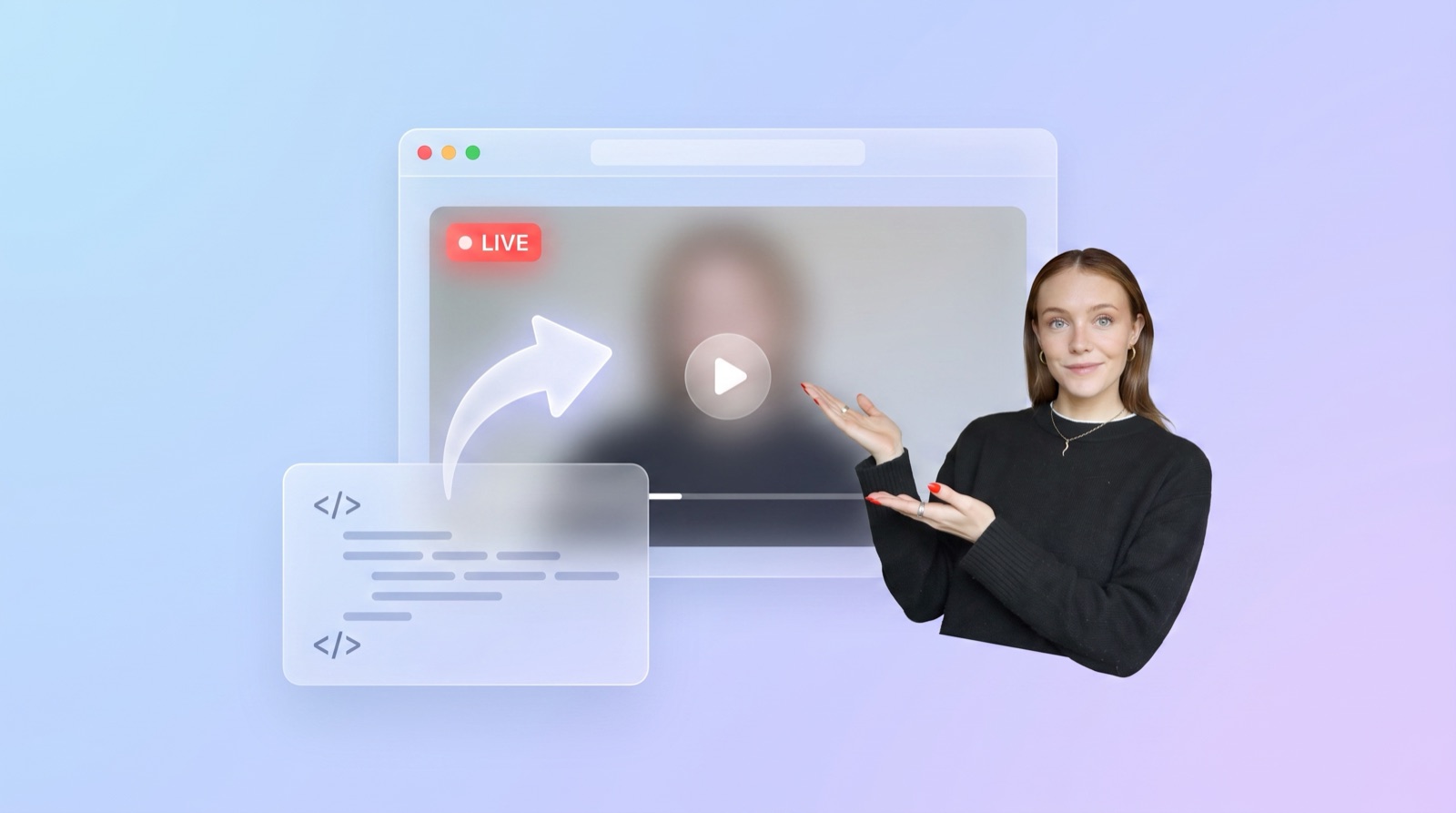
If you've been told to "embed the live stream on the website" and nodded along while quietly wondering what that actually means, this guide is for you.
Embedding a live stream means placing your live video inside a page on your own website, so people can watch it there instead of being sent off to Facebook or YouTube. You do it by pasting a small piece of code into your site. That's the whole idea. The rest of this article unpacks how it works, what the code looks like, and the one catch nobody warns you about.
The Plain-English Definition of Embedding
Embedding a live stream means adding a live video player to a page on your website using a short snippet of code, called an embed code. The video is still hosted by the streaming platform (YouTube, Facebook, or Twitch), but it plays inside your page. Your visitors press play and watch without ever leaving your site.
A helpful way to picture it: your live stream is a TV broadcast, and an embed is a TV screen mounted on your website's wall. The broadcast comes from somewhere else. The screen just shows it, right there in your space.
That distinction matters. When you embed, you are not uploading video to your website or paying for streaming servers. The heavy lifting (cameras, encoding, bandwidth) stays with the platform you already stream to. Your website only displays the result.
What an Embed Code Actually Is
An embed code is a few lines of HTML that a streaming platform generates for you. You never write it yourself. You click a Share or Embed button on the platform, copy the code, and paste it into your website.
Here's a simplified example of what a YouTube embed code looks like:
<iframe
  src="https://www.youtube.com/embed/YOUR_VIDEO_ID"
  width="560" height="315"
  allowfullscreen>
</iframe>
The key word in there is iframe, which is short for "inline frame." An iframe is literally a window: it tells your web page to open a rectangle and show content from another website inside it. In this case, that content is YouTube's video player pointed at your stream.
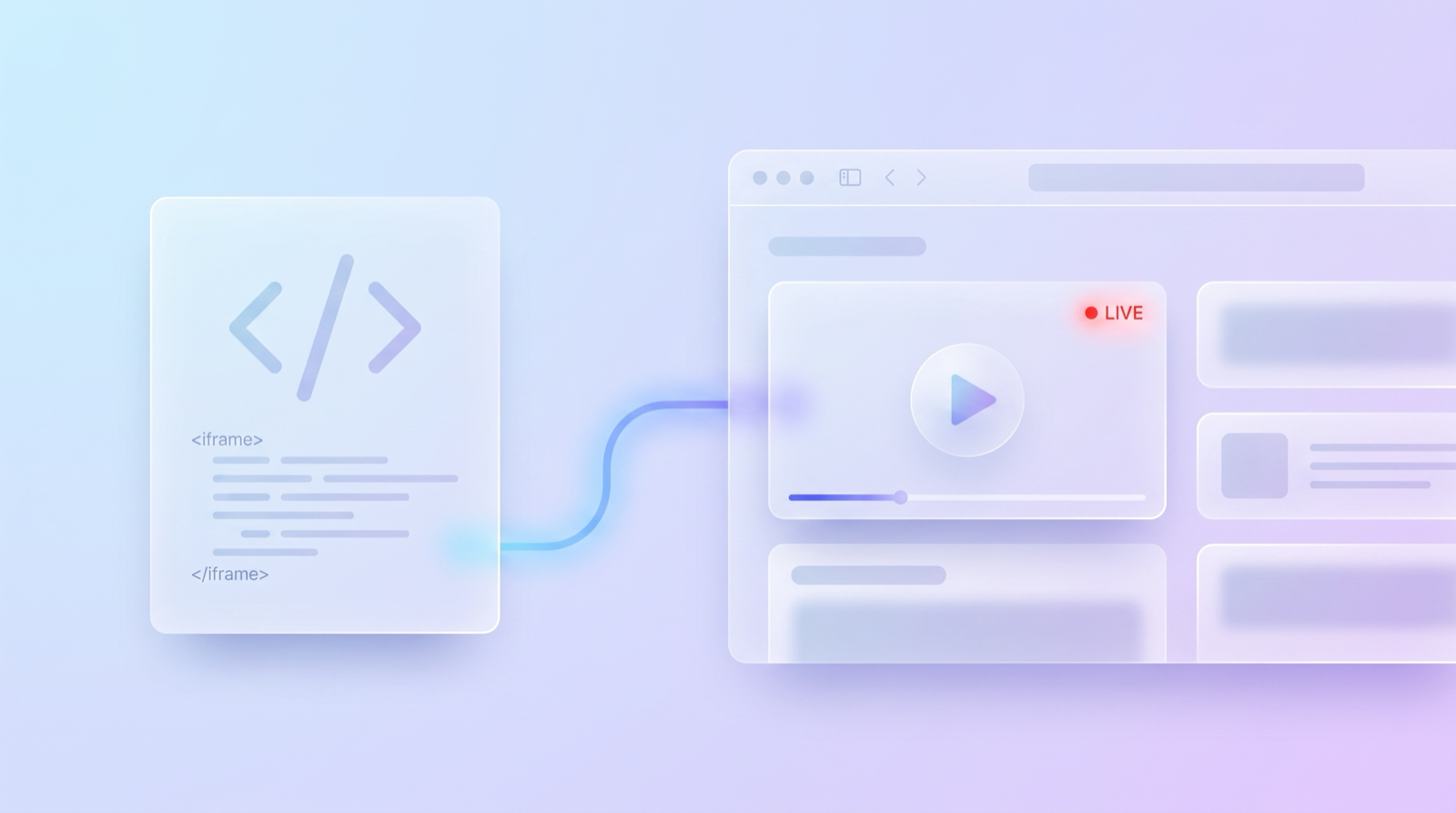
Every major platform hands out these codes for free:
- YouTube: click Share on any video or live stream, then Embed
- Facebook: click the three-dot menu on a public video, then Embed
- Twitch: channel pages have an embed option, and Twitch also documents a standard iframe format
You don't need to understand the code to use it. If you can copy and paste a paragraph of text, you can embed a video.
Embedding vs. Linking vs. Sharing
These three words get mixed up constantly, and they produce very different results for your visitors.
| Approach | What your visitor experiences | Where they end up |
|---|---|---|
| Embedding | The video plays inside your page | Your website |
| Linking | They click and get taken to the platform | Facebook, YouTube, etc. |
| Sharing | The video appears in a social feed | The social platform |
Linking is the most common shortcut, and it's the one that quietly costs you an audience. The moment someone lands on Facebook to watch your stream, they're one notification away from a completely different rabbit hole. Facebook's feed is engineered to keep them there, not to send them back to you.
Embedding flips that. Your visitors watch in a space you control, surrounded by your branding, your announcements, and your next steps. For a church, that's the sermon archive and the giving page. For a business, that's your products. Nobody's algorithm is competing for their attention.
Quick note: Embedding is also the more welcoming option for people who don't have accounts on the platform. A public YouTube or Facebook stream embedded on your site plays for everyone, no login required.
Where the Embed Code Goes on Your Website
Every mainstream website builder has a spot designed for pasted code. The name varies, the job is identical:
- WordPress: add a Custom HTML block in the editor and paste the code. Our guide to embedding live video on WordPress walks through it screen by screen.
- Squarespace: add a Code block or an Embed block (step-by-step here).
- Wix: use the Embed HTML element (full walkthrough).
- Anything else: if your builder can show custom HTML anywhere, it can hold an embed. Our any-website guide covers the general pattern.
Paste the code, publish the page, and the player appears. On a typical builder the whole process takes under five minutes.
The Catch: Live Embed Codes Can Expire
Here's the part most "how to embed" articles skim past, and it's the thing most likely to burn you.
An embed code points at a specific video. For regular uploaded videos that's fine, because the video never changes. Live streams are different. On Facebook, every broadcast is a brand-new video with a brand-new embed code. Embed this Sunday's stream, and next Sunday your website will be proudly displaying last week's service while this week's stream plays somewhere else.
That leads to the weekly ritual anyone who's done this manually knows too well: go live, open the platform, find the new video, copy the new embed code, log in to the website, replace the old code, publish, and hope you did it fast enough that early viewers didn't see a dead player. Every single broadcast.
YouTube softens this with a permanent "live" URL for your channel, but it comes with its own quirks: embedding a channel's live URL requires your channel to be actively live, needs an API key for reliable behavior, and shows an error card when you're offline. Not exactly the "set it and forget it" experience you wanted.
What Auto-Embedding Means
Auto-embedding solves the expiring-code problem. Instead of pointing your website at one specific video, you point it at a small service that watches your channel and always shows the right thing.
That's what EmbedVidio does. You paste one embed code into your website, once. The widget then:
- Detects when you go live on Facebook, YouTube, or Twitch, typically within about 10 seconds of your broadcast starting
- Switches your page to the live stream automatically, with no page refresh and no code changes
- Falls back gracefully when you're offline, showing your recent videos or a custom placeholder instead of an error
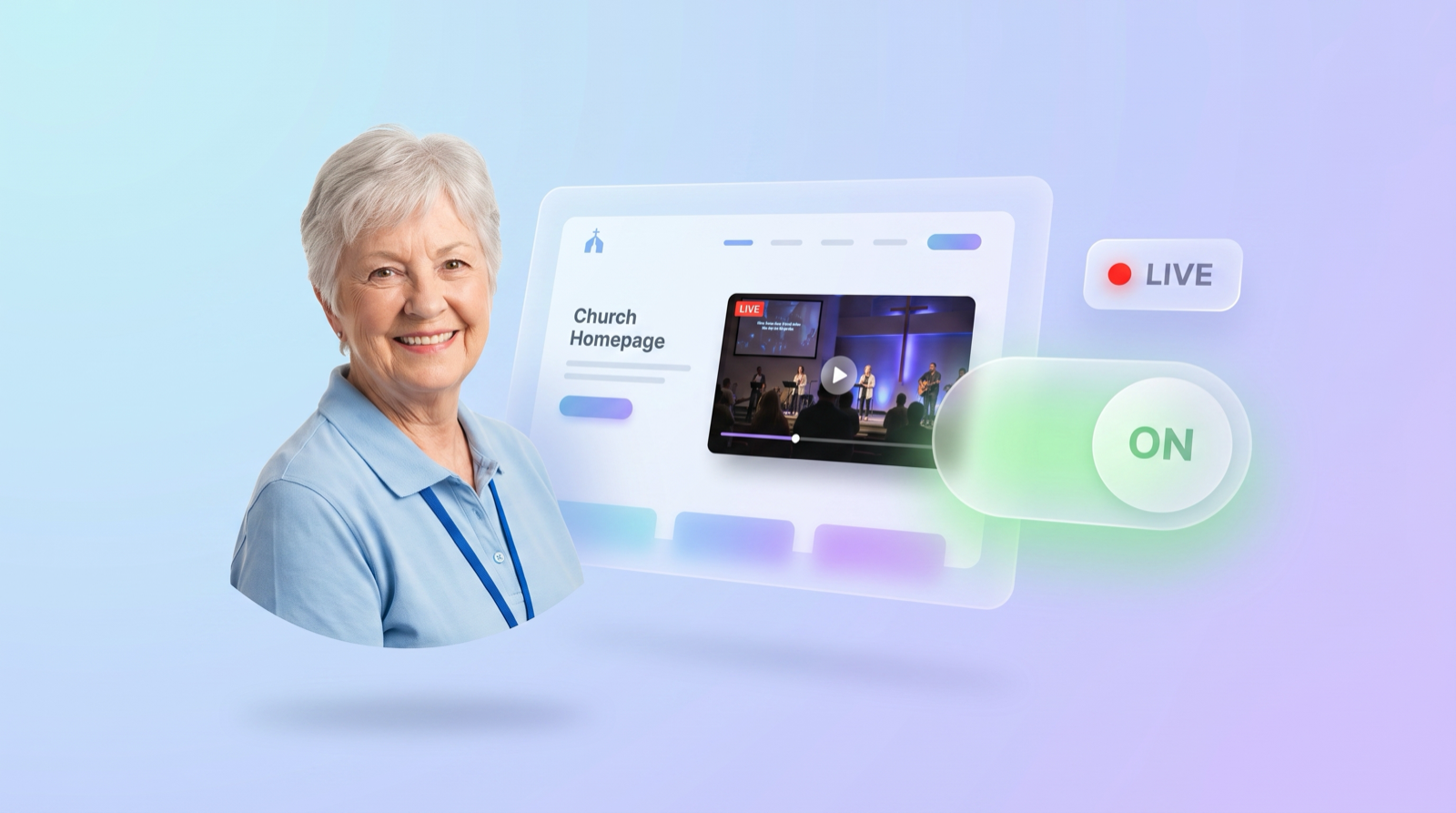
The embed code never changes because it doesn't point at a video. It points at your channel. Go live at 10:03, and by 10:03 and a few seconds your website is live too, while you're busy doing literally anything other than editing your homepage.
Why Churches Embed Their Live Streams
Any organization can benefit from embedding, but churches feel the difference most, which is why they make up the majority of EmbedVidio's customers.
The math is simple: nearly 30% of U.S. adults aren't on Facebook, and the share is higher among older adults, who are often the very members a church most wants to reach with an online service. A stream that only exists on Facebook is invisible to them. A stream embedded on the church website is one bookmark away, with no account, no feed, and no distractions.
There's a practical side too. Church streams run on volunteer time, and volunteers change. A website that updates itself every Sunday is one less thing to hand over, document, or panic about at 9:55 a.m.
If that's your situation, start with our complete guide to embedding your church live stream on your website, or go straight to the church live stream setup walkthrough.
The Takeaway
"Embed live streams" sounds technical, but it boils down to something simple: put the video on your own website instead of sending people away to watch it. A platform hosts the stream, a few lines of pasted code display it, and your visitors stay with you.
The only real decision is manual versus automatic. Manual embeds are free and fine for a one-off event. For anything recurring, especially a weekly broadcast, an auto-embedding widget removes the code-swapping ritual entirely: one paste, and your website handles every broadcast after that on its own.
Frequently Asked Questions
What does it mean to embed a live stream?
Embedding a live stream means placing a live video player directly inside a page on your own website. The video is still hosted and broadcast by a platform like YouTube or Facebook, but your visitors watch it on your site without leaving the page. You add it by pasting a small piece of code, called an embed code, into your page.
Do I need to know how to code to embed a live stream?
No. The platform generates the embed code for you, and you paste it into your website builder the same way you would paste text. WordPress, Squarespace, Wix, and most other builders have a block or element made exactly for this. Copying and pasting is the only technical skill involved.
What is the difference between embedding a live stream and linking to it?
A link sends visitors away from your website to watch the stream somewhere else, like your Facebook page. An embed keeps them on your website and plays the video right there on the page. Embedding is usually the better option because your visitors stay in a space you control, with your branding and your other content around the video.
Why did my embedded live stream stop working?
The most common reason is that the embed code pointed at a single broadcast that ended. Many platforms, including Facebook, generate a new video (and a new embed code) every time you go live, so last week's code shows last week's video. You either need to paste a fresh code before each broadcast or use an auto-embedding service that updates for you.
Is embedding a live stream free?
The embed codes themselves are free. YouTube, Facebook, and Twitch all let you copy an embed code at no cost. What you give up with free manual embeds is automation: the code may need replacing for each broadcast, and nothing switches your page between live and offline. Paid tools like EmbedVidio (starting at $9/month with a 7-day free trial) handle that automatically.
Written by
EmbedVidio Team
EmbedVidio puts your live streams and videos from Facebook, YouTube, Twitch, and more on any website with a one-time embed code.
Related Articles
 Church Streaming
How to Embed Your Church Live Stream on Your Website
Three ways to get your church live stream onto your own website: manual embed codes, church platform widgets, and a one-time embed that detects when you go live. What each one costs you every Sunday, where to paste it, and what to do when the stream does not show.
11 min read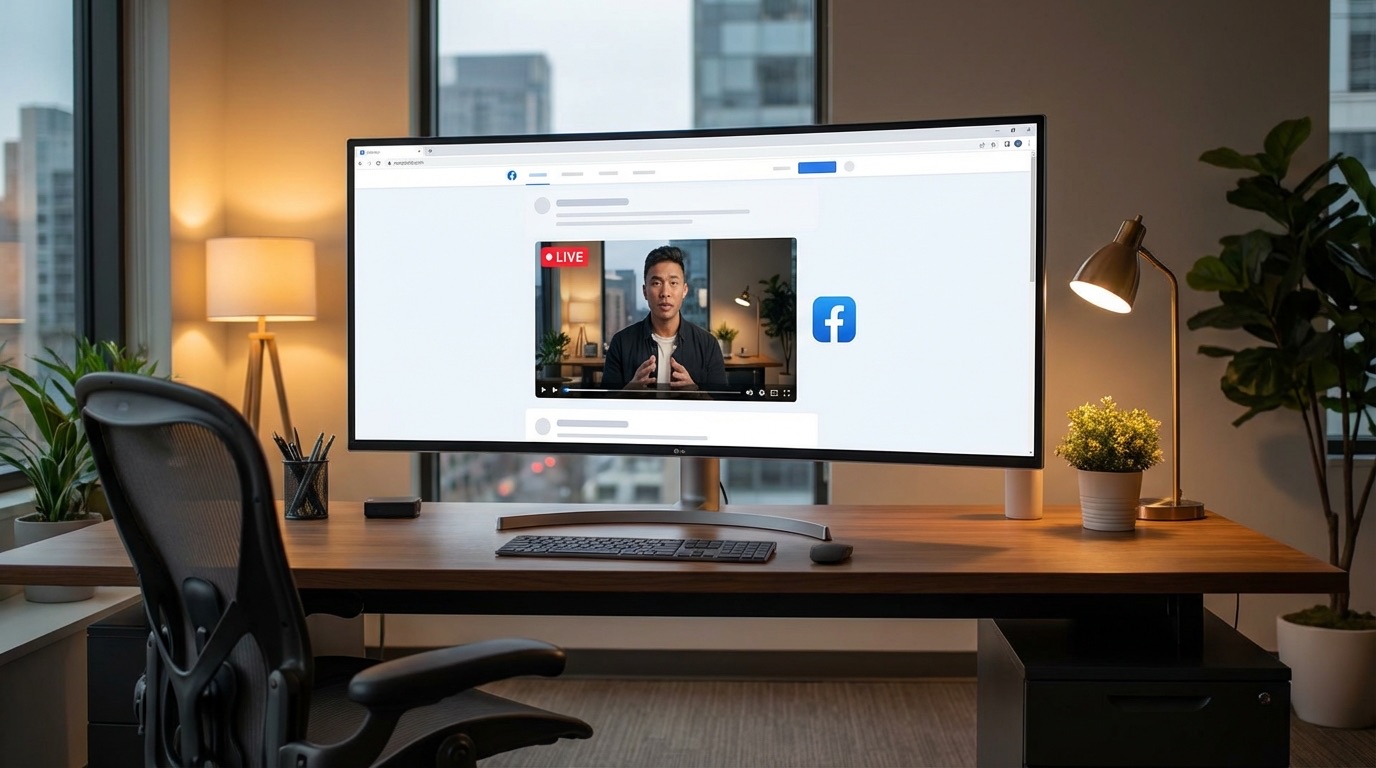 Platform Guides
How to Embed Facebook Live on Your Website
Facebook hands you a new embed code every time you go live. Here are the three ways to get Facebook Live onto your website, what each one costs you every Sunday, and the setup for WordPress, Squarespace, Wix, and Shopify.
10 min readPut your live stream on your own website
EmbedVidio detects when you go live on Facebook, YouTube, or Twitch and updates your website automatically. One embed code, set up once, in about 5 minutes.
Start Free Trial