How to Embed Your Church Live Stream on Your Website
Three ways to get your church live stream onto your own website: manual embed codes, church platform widgets, and a one-time embed that detects when you go live. What each one costs you every Sunday, where to paste it, and what to do when the stream does not show.
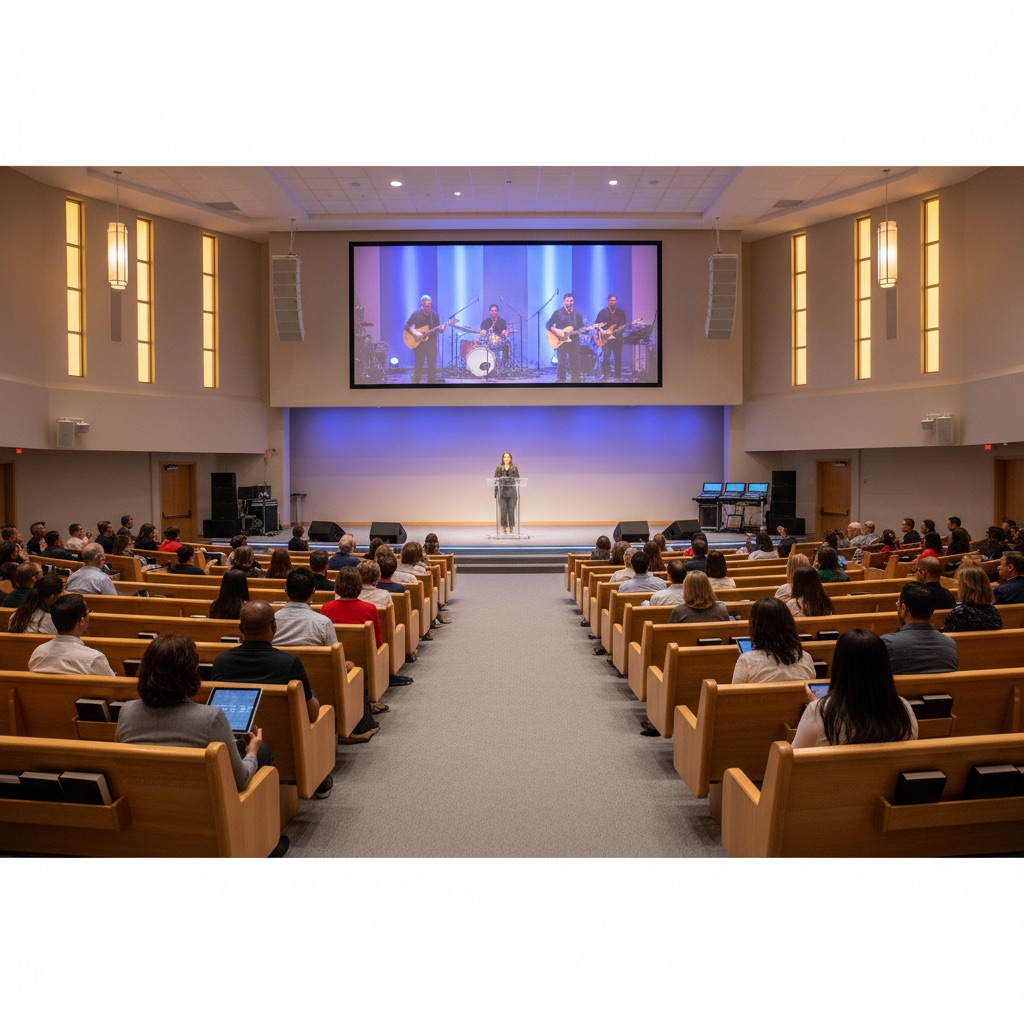
Your church already streams every Sunday on Facebook or YouTube. The people watching there are fine. The problem is everyone who isn't there: the member who never made a Facebook account, the visitor who typed your church name into a browser, the shut-in whose granddaughter set up "the church website" on her iPad. They go to your site, and either there's no video or it's last week's.
Here's the short version. There are three ways to embed your church live stream on your website. A manual embed code is free but has to be replaced before every service. A church website platform's built-in widget is easy if you're on that platform and useless if you aren't. A one-time embed connects to your Page or channel once, then shows the live video on your site the moment you go live, on any builder. If you stream weekly and your tech help is a volunteer, the third one is the one that removes the Sunday morning scramble. The rest of this post shows the work.
Your website is where the people who aren't on Facebook look
Nearly 30% of U.S. adults don't use Facebook, according to the Pew Research Center, and the share is higher among older adults, who are often the members most likely to watch from home. A stream that lives only on Facebook is invisible to them. Your website is the one place every member already knows how to find.
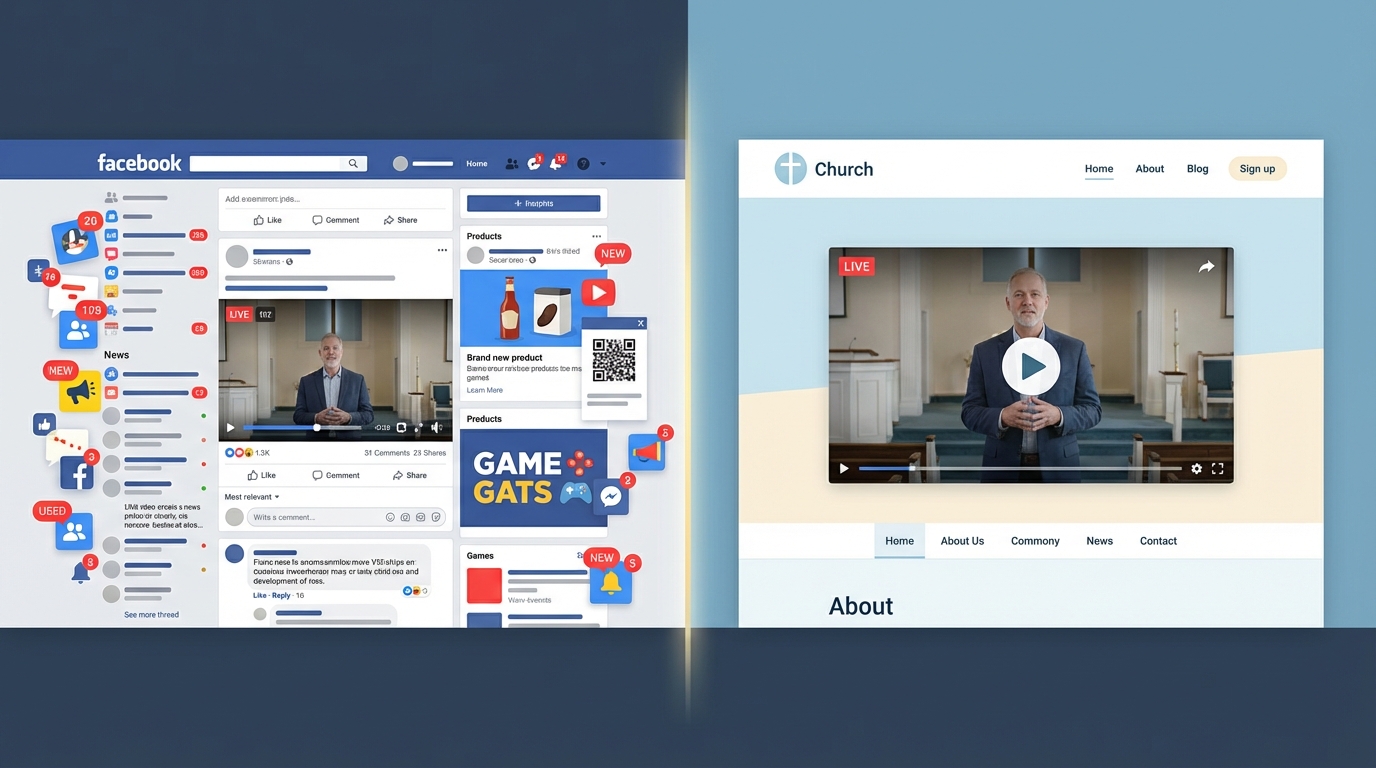
The other thing your website does is hold attention. On Facebook, a viewer is one notification away from the feed. On your site, the only thing on the page is the service, right next to your giving page, service times, and next steps. And the online congregation is not a fringe. Pew found that about 40% of U.S. adults who attend religious services also watch online, even when they could be in the room. They rewatch during the week, share with family in another state, and catch up when travel or illness keeps them home.
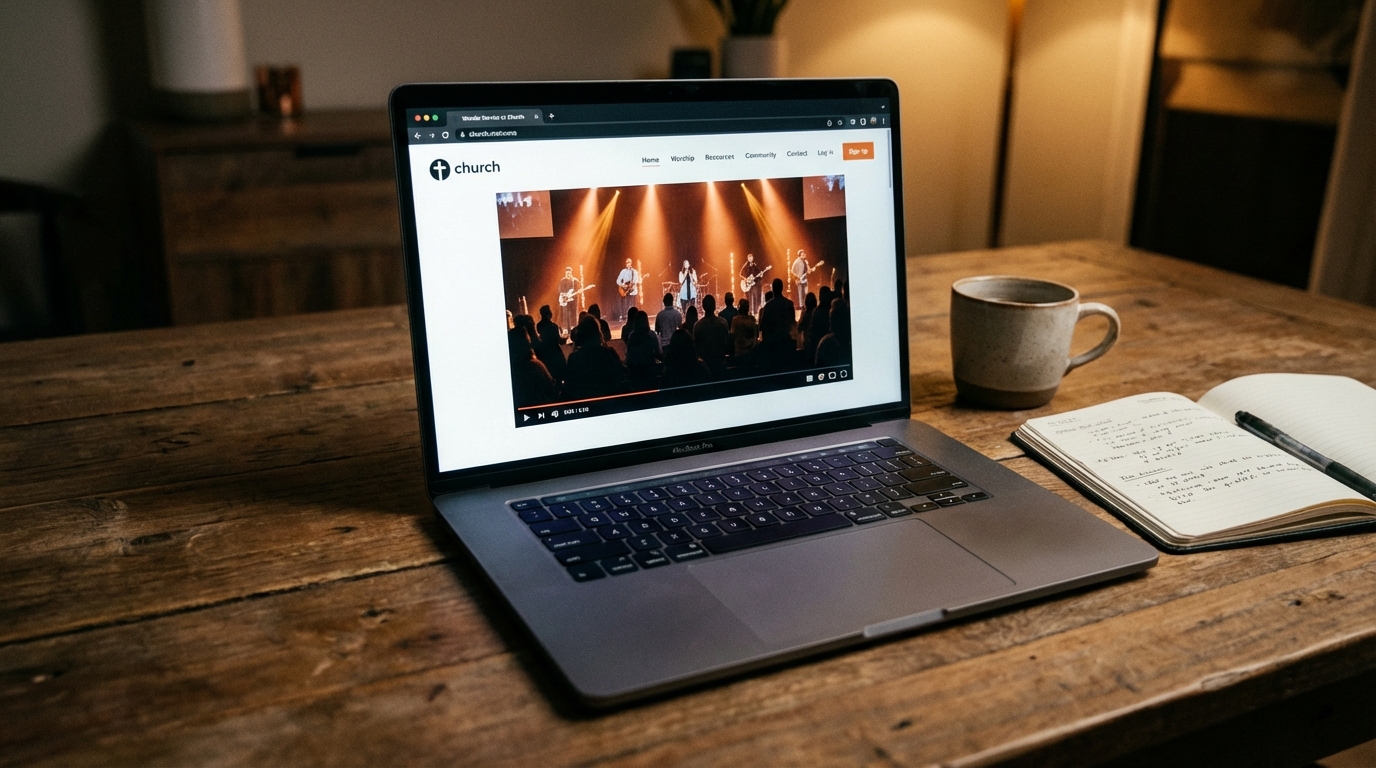
So the website isn't a nice-to-have media page. It's the front door for the people who aren't on the platform. We wrote a whole post on reaching the members who aren't on Facebook, and the numbers behind all of this are in our church live streaming statistics roundup. The question is how to get the stream there without adding a weekly chore to a volunteer who already has one.
Method 1: manual embed codes (free, but every Sunday)
A manual embed is free and works on any website. You copy the iframe code from the Facebook or YouTube video and paste it into a code block on your site. The cost is that the code covers one broadcast, so someone repeats the copy-and-paste before every service, and YouTube's own live embed requires 1,000 subscribers.
The steps are short: go live, open the video, copy its embed code, paste it into your site, publish. Five minutes if nothing goes wrong.
The problem every church tech volunteer knows is that the code changes every time you go live. Facebook and YouTube both create a new video for each broadcast, so last week's code points at last week's video. That's 52 updates a year for a weekly service, each one done in the ten minutes before the prelude, each one a chance to forget. If the volunteer is sick or late, the website shows an old recording or nothing.
If you're weighing this honestly against a paid tool, the manual-embed comparison lays out the trade-off without the sales voice. For a lot of churches that stream a couple of times a year, manual is the right answer. For a weekly service, it's a trap.
Method 2: church platform widgets (only if you're on that platform)
Church website platforms like Church Online Platform, Subsplash, and ChurchSpring include their own live stream players. They're convenient if your site already runs on one, but they only work there, most still want a new embed or schedule entered per service, and moving your site later means starting over.
Church Online Platform accepts embed codes from YouTube, Facebook, Twitch, and Vimeo, entered per service in its admin. Subsplash lets you schedule a live stream so an embed preview appears in advance. ChurchSpring links to your Facebook or YouTube URL and shows a countdown when a service is close. BoxCast brings its own player, which integrates with Church Online Platform.
These are built for churches, and the support docs speak your language. The limit is the fence around them. If your church site is WordPress, Squarespace, Wix, Shopify, or a hand-built site from a volunteer years ago, none of this is available to you. And even inside the fence, most of these still ask for something per stream. We compared the biggest one directly in the Church Online Platform comparison.
Method 3: a one-time embed that detects when you're live
A one-time embed connects to your Facebook Page or YouTube channel once and gives you a single embed code that never changes. When you go live, it shows the stream on your site on its own, with no refresh for viewers. When you're offline, it shows your recent services or a placeholder. It works on any website that accepts an embed code.
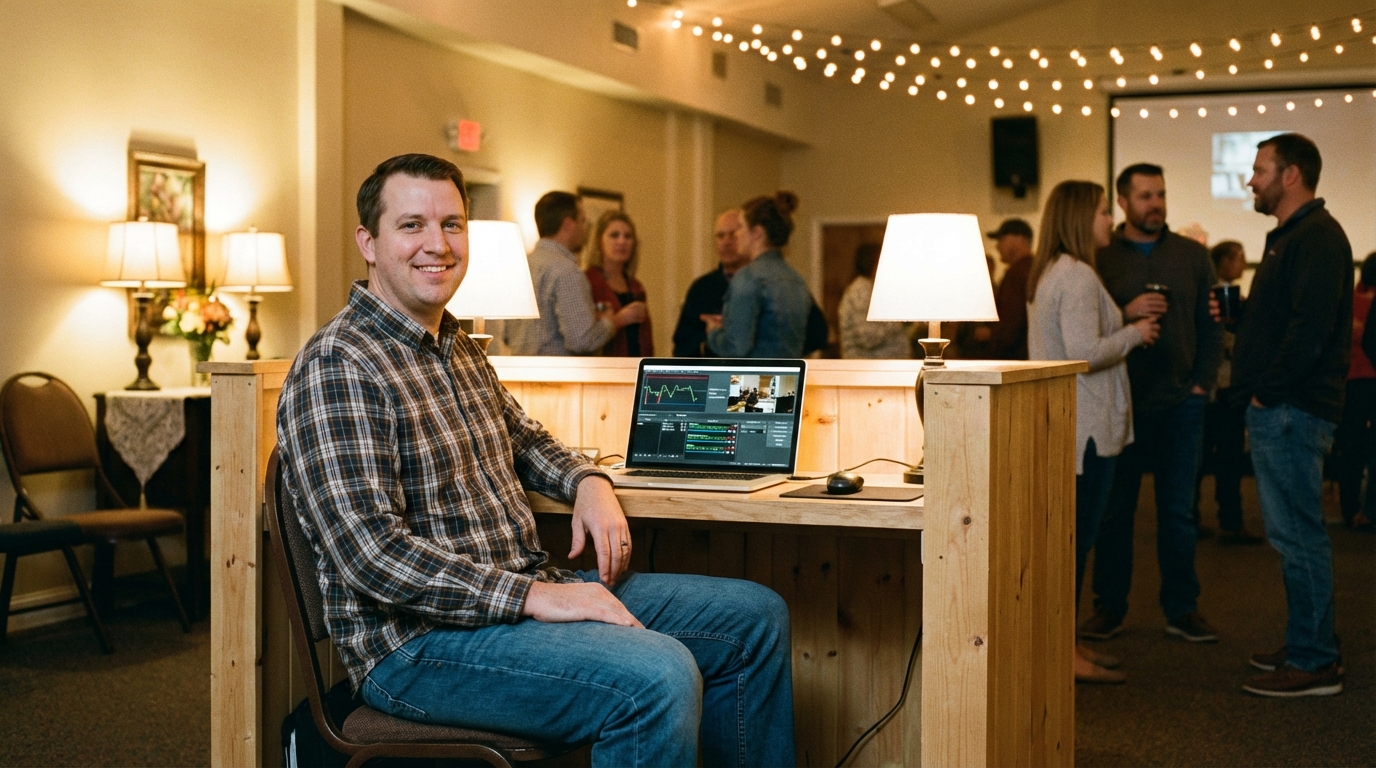
From your side it's three steps: connect the Page or channel, paste one code, go live as usual. The tool does the watching. Facebook notifies a connected app the moment a Page goes live, so the stream can appear on your site within seconds. YouTube doesn't send that kind of notification, so tools check the channel on a short cycle and the stream typically appears within a minute or two.
Two things follow: nobody touches the website on Sunday, and the page between Sundays shows the last few services instead of a dead player.
This is the exact problem we built EmbedVidio to solve: one embed code, pasted once, that detects when you go live on Facebook, YouTube, or Twitch and plays the stream on your site with no weekly swap. It starts at $9/month, or $7/month billed yearly, with a 7-day free trial and no card required. You could wire up something similar with the platforms' APIs yourself. It just takes a lot more of your Saturday than pasting one line does.
| Manual embed | Church platform widget | One-time embed | |
|---|---|---|---|
| Cost | Free | Part of the platform fee | From $9/month |
| Works on any website | Yes | Only that platform | Yes |
| Work per stream | Copy and paste the new code | Usually a schedule or embed per service | None |
| Shows the stream when you go live | When someone pastes the code | Sometimes | Facebook in seconds, YouTube within a minute or two |
| Viewer has to refresh | Yes | Sometimes | No |
| YouTube under 1,000 subscribers | Not with YouTube's player | Varies | Yes |
| Between services | Last recording, or a broken player | Varies | Recent services or a placeholder |
Where to paste it: WordPress, Squarespace, Wix, Shopify
Every major builder has a block that accepts raw HTML, and any embed code goes there. WordPress has a Custom HTML block, Squarespace a Code block, Wix an HTML Embed element, Shopify a Custom Liquid section. Paste, publish, and the player appears where the block sits. A hand-built site takes the code straight into the page HTML.
The same spot works for a manual code or a one-time embed; the difference is whether you'll be back next week. Builder-by-builder walkthroughs with screenshots are in embedding live video on WordPress, on Squarespace, on Wix, on Shopify, and on any website. If your church is on one of the big three, the church-specific setup pages for WordPress, Squarespace, and Wix are the shortest path.
Two placement rules that matter more than the builder. Put the player on the homepage or a "Watch Live" page linked from the main menu, not a Media page nobody visits. And put the service time right above it: "Sundays at 10:00" does more for attendance than any design choice.
Facebook, YouTube, and streaming to both
Facebook Live reaches the members who already follow your Page and notifies them when you start, but its player brings Facebook's interface along and viewers need an account to interact. YouTube Live needs no account to watch and keeps a searchable archive, but YouTube's own live embed requires 1,000 subscribers. Many churches stream to both and let one player on the site show whichever is live.
Facebook. The embed player includes Facebook's like, share, and comment controls unless a tool strips them out. Facebook also creates a new video URL per broadcast, which is the root of the weekly code problem. The dedicated walkthrough is how to embed Facebook Live on your website, and the setup page is embed Facebook Live on a website.
YouTube. The 1,000-subscriber rule applies to YouTube's native embedded live player. A tool that reads the stream through YouTube's API isn't bound by it, which is why a 200-subscriber church channel can still show its live service on the website. Details on the YouTube Live embed page.
Both at once. Multistreaming is done upstream, in free tools like OBS Studio or Restream, which send one broadcast to both platforms. On the website side, a manual approach means two codes updated weekly. A one-time embed can connect both the Page and the channel to a single player and show whichever goes live first. The best church streaming software post compares the multistream tools.
Make the stream easy to find and easy to watch
Getting the stream onto the site is half the job. The other half is a weekly rhythm: the same service time, the player in the same place on the homepage, past services one click away, and a reminder to your email list an hour before you start. Consistency builds the at-home habit; a clever one-off doesn't.
Keep recordings visible, because a lot of viewers watch on Monday. Test any new embed on a weekday, not at 9:55 on Sunday. And tell people, in the bulletin and the newsletter, that they can watch on the website; most don't know. And keep captions on: Facebook and YouTube both generate automatic captions on live video, and those carry through to the embedded player, which matters for deaf and hard-of-hearing members. For recordings, YouTube lets you upload a corrected caption file after the service. The W3C's accessibility guidelines are the reference if you want to go further.
When the stream doesn't show up
Three problems account for almost every "the stream isn't on the website" message: you aren't actually live yet, the embed code got removed by a theme or page update, or the connected account needs to be re-authorized. A 10 to 30 second delay behind the broadcast is normal and comes from the platform, not the embed.
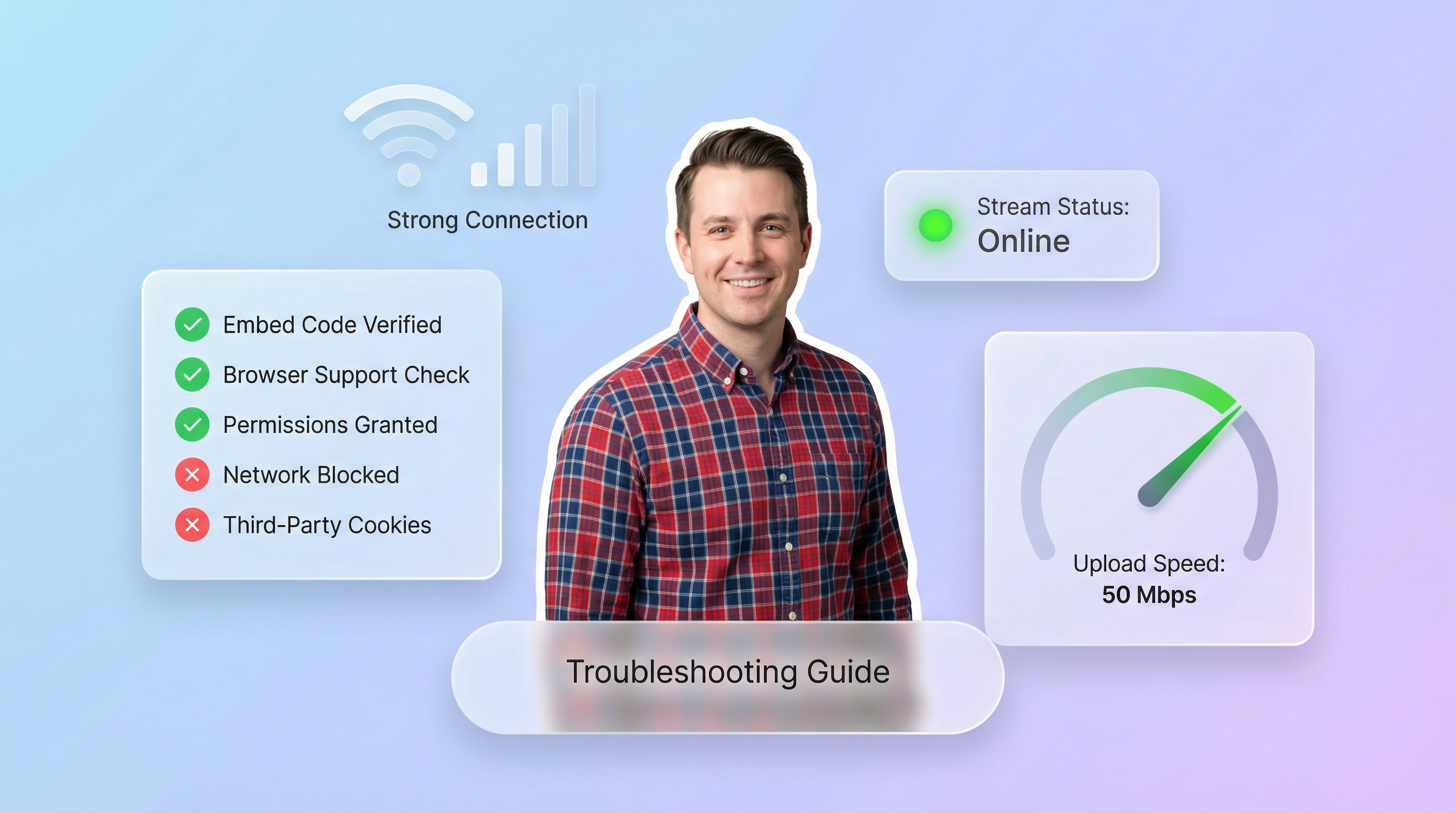
Nothing shows. Confirm the broadcast is live on Facebook or YouTube first; scheduling mistakes are common. Then check the page still contains the embed code, because theme changes and page rebuilds silently drop code blocks. If you're on a manual embed, confirm the code matches this week's video. If you're on a one-time embed, open its dashboard and confirm the Page or channel is still connected; Facebook and YouTube occasionally expire the connection and it needs a fresh login.
It's behind. Some delay is built into live streaming. Facebook and YouTube both buffer the feed, so 10 to 30 seconds is normal and the embed doesn't add to it. Low-latency mode in the platform's settings trims it a little. Plan for it during interactive moments like live prayer requests.
It buffers or looks bad. That's upload bandwidth at the church, almost always. You need 5 Mbps upload for 720p and 10 Mbps for 1080p, tested from the streaming spot at service time, with other devices off the Wi-Fi. A wired connection fixes more streaming problems than any other single change. If one viewer at home complains and nobody else does, it's their connection, not yours.
For everything upstream of the embed, from choosing between Facebook and YouTube to what gear is worth buying, start with the complete guide to live streaming your church service to your website. If you're deciding whether a dedicated widget is worth paying for, the best church live stream widget for your website walks through what to look for.
Frequently Asked Questions
Do I need to update the embed code every time we go live?
With a manual embed, yes. Facebook and YouTube create a new video URL for each broadcast, so the code has to be replaced before every service. A live-detecting embed uses one permanent code and swaps the video in for you.
Does our YouTube channel need 1,000 subscribers to embed live streams?
YouTube's own embedded live player requires the channel to have 1,000 subscribers. Third-party embed tools that read the stream through YouTube's API are not subject to that rule, so a small church channel can still show its live service on the website.
Will the live stream work on WordPress, Squarespace, or Wix?
Yes. Every major builder has a block that accepts an embed code: a Custom HTML block in WordPress, a Code block in Squarespace, an HTML Embed element in Wix, a Custom Liquid section in Shopify. Paste the code there and publish.
What shows on the website when we are not streaming?
A manual embed shows the recording of the last stream, or a broken player if the video was removed. A live-detecting embed shows your recent services or a placeholder image you choose, so the page looks intentional between Sundays.
Can we show a stream that goes to Facebook and YouTube at the same time?
With manual embeds you would need two codes and update both every week. A one-time embed lets you connect both the Page and the channel to one player, which shows whichever goes live. Multistreaming itself is handled by free tools like OBS Studio or Restream.
Do captions carry through to the embedded player?
Yes. Facebook and YouTube generate automatic captions on live video, and those captions are part of the player, so they appear in the embed too. For recordings, YouTube also lets you upload a corrected caption file after the service.
What upload speed does our church need to stream?
At least 5 Mbps upload for 720p and 10 Mbps for 1080p. Test from the exact spot you stream from, at your normal service time, and keep other devices off the church Wi-Fi during the broadcast. A wired connection is the single biggest reliability fix.
Written by
EmbedVidio Team
EmbedVidio puts your live streams and videos from Facebook, YouTube, Twitch, and more on any website with a one-time embed code.
Related Articles
 Platform Guides
How to Embed Facebook Live on Your Website
Facebook hands you a new embed code every time you go live. Here are the three ways to get Facebook Live onto your website, what each one costs you every Sunday, and the setup for WordPress, Squarespace, Wix, and Shopify.
10 min read Church Streaming
How to Reach Church Members Who Aren't on Facebook
A big share of your congregation will never watch a Facebook-only stream. Here is how to make sure the members who aren't on Facebook can still watch your service, from your own website, no account required.
7 min read Church Streaming
The Best Church Live Stream Widget for Your Website
A church live stream widget puts the service you already stream on Facebook or YouTube onto your own website, automatically. Here's what a widget actually does, the five things that separate a good one from a fancy embed code, and how it compares to manual embeds and full streaming platforms.
10 min readReady to embed live streams on your website?
Start your free trial today. One-time setup, no coding required.
Start Free Trial