How to Embed YouTube Live Chat on Your Church Website
YouTube's live chat can sit right beside the service on your own website. Here is the manual two-iframe method, the catch that breaks it every Sunday, and the way to make it automatic.
The people watching your service on YouTube have something the people watching on your website don't: each other. The "good morning from Ohio," the prayer request typed in during the offering, the row of amens at the end. On your own site, the same stream plays to a silent room.
You can fix that. YouTube lets you embed its live chat on any website, and it works beside the video on your church's page. The short version: YouTube publishes a chat embed at a special address that takes your stream's video ID and your domain name. You drop it in an iframe next to the video embed, and viewers on your site see the same chat as viewers on YouTube. The catch is that the video ID changes every time you go live, so a hand-coded embed is wrong by next Sunday. Below is the manual method, the catch, and the way to make it automatic so you never touch the code again.
Why the chat belongs on your website, not just on YouTube
A church website is where members who aren't on social media go to watch, and they are often the ones most likely to be home on Sunday. Nearly 30% of U.S. adults aren't on Facebook, and YouTube's chat requires an account too. Showing the chat on your site lets those viewers at least read the room, and gives everyone else one place to watch and talk.
That 30% figure is from the Pew Research Center, and we've written about why those website-first members matter so much. The point here is simpler. If you've already done the work to embed your church live stream on your website, the chat is the missing half. A stream with chat feels like a gathering. A stream without it feels like a broadcast.
There's a practical side too. During a service, the chat is where "the audio cut out" shows up first, and where your online host answers "what was that verse?" If that conversation only happens on YouTube, your website viewers are the last to know anything.
The manual way: two iframes and one address
YouTube's chat embed is an iframe pointed at youtube.com/live_chat with two settings: the video ID of the live stream and the domain of the site it's embedded on. The stream must be public or unlisted. The chat frame goes beside the normal video embed on the same page, and both load from YouTube.
Here's the whole thing. Replace VIDEO_ID with the ID from your stream's share link, and yourchurch.org with the exact domain in your address bar (if your site opens at www.yourchurch.org, use that, with the www).
<iframe width="640" height="360"
  src="https://www.youtube.com/embed/VIDEO_ID?autoplay=1"
  allow="autoplay; encrypted-media" allowfullscreen></iframe>

<iframe width="350" height="360"
  src="https://www.youtube.com/live_chat?v=VIDEO_ID&embed_domain=yourchurch.org"
  frameborder="0"></iframe>
Paste that into an HTML block on your builder (a "Code" block in Squarespace, "Custom HTML" in WordPress, "Embed HTML" in Wix) and the chat appears next to the video. Two small refinements: add &dark_theme=1 to the chat address if your page is dark, and give the chat frame the same height as the player so the two line up. If you want them side by side rather than stacked, wrap both in a container with display: flex.
If the chat frame shows "Chat is disabled for this live stream," the usual reasons are that the stream is private, chat is turned off in YouTube Studio, or the embed_domain doesn't match the site exactly. YouTube's own help page on live chat covers the settings on their side.
The catch: the video ID changes every Sunday
Every YouTube broadcast gets a new video ID, so an embed written for this week's stream points at a finished video next week. The chat frame then shows a replay or nothing at all. Keeping the manual embed working means someone editing the page's code before every service, which is the same weekly chore that makes plain video embeds a trap.
This is the part the vendor tutorials skip. They show you one video ID, one embed, and a working chat, and they're right, for that one stream. On Monday the person who pasted it has to find the next scheduled stream in YouTube Studio, copy its ID, open the page in the builder, and paste it into two places. Forget once and the website shows last Sunday's chat replay under last Sunday's video, right when a visitor who got the link from a friend finally shows up.
Scheduling the stream ahead of time helps a little, because the ID exists before you go live. It doesn't remove the chore. It just moves it to Saturday.
The automatic way: a widget that brings the chat along
An auto-embed widget watches your YouTube channel, detects when a stream starts (usually within about 10 seconds), and swaps itself to the live video on its own. The same widget can load that stream's chat beside the player, because it already knows the video ID. Nobody edits the page; the chat shows up when you go live and goes away when you stop.
This is what we built the Live Chat switch in EmbedVidio for. The weekly code swap was the whole reason the product exists, and chat was the last piece still stuck on YouTube's side of the fence. The setup is three steps:
- Connect your YouTube channel and create a live widget. Pick the Live layout (just the player) or a Live+ layout (player plus recent services). Paste the one embed code into the page where your service lives. That code never changes.
- Turn on Live Chat. In the widget editor, open the Live Chat section and switch on "Show live chat." It's off for every widget until you choose it, so nothing on your site changes until you're ready.
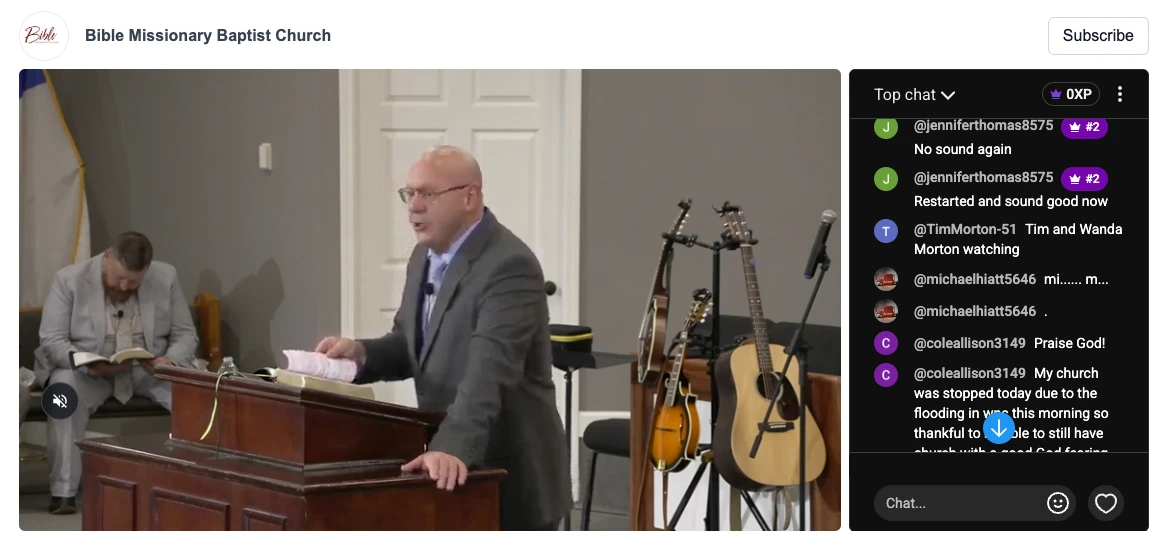
- Go live as usual. When the stream starts, the player flips to the video and YouTube's chat appears in a column to the right, exactly as tall as the player. When the stream ends, the chat folds away and the widget goes back to its placeholder or your recent services.
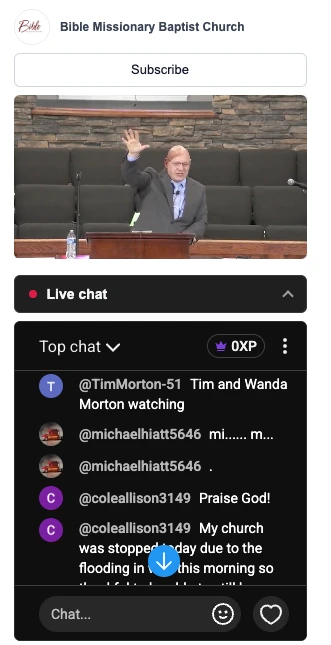
On phones and in narrow sidebars, a 350-pixel chat column would crush the video, so under about 600 pixels of width the chat folds into a "Live chat" bar under the player. Tap it and the chat opens below the video; tap again and it closes. The page never jumps when a stream starts, which matters when grandma already has the page open at 9:58.
You can see it running on our live chat demo page, which follows a channel that streams around the clock, so the chat is usually open. The widget is the same one described on our embed YouTube Live on your website page; chat is a switch on top of it, included in every plan starting at $9/month.
What iPhone viewers will see, and what to tell them
Posting in an embedded YouTube chat requires signing in to YouTube inside the chat frame. Chrome and Firefox on a computer usually allow that. Safari on a Mac, and every browser on an iPhone or iPad, block it, so those viewers see the chat scroll by but can't type. The fix is a link that opens the chat on YouTube in its own window.
This is true of the manual embed and the automatic one alike, because it's YouTube's rule, not the website's. It comes from the way Safari handles sign-ins inside frames from another site. There is no setting on your end that changes it.
So plan for it. Put a short line under the chat: "Can't post here? Open the chat on YouTube." Link it to https://www.youtube.com/live_chat?is_popout=1&v=VIDEO_ID and it opens as a clean chat window with no video, which works everywhere. The EmbedVidio widget adds this line automatically, with the right video ID filled in, because it's the first question anyone asks. And tell your online host to expect it. Most of the people reading on a phone can still see every message, and that's most of the value.
Moderation and slow mode come from YouTube, not your site
The embedded chat is YouTube's chat, so every setting you control in YouTube Studio applies to it: moderators, blocked words, slow mode, members-only or subscribers-only chat, and holding messages for review. You set these once for your channel, and they cover viewers on YouTube and on your website at the same time.
That's the right way round. Your church doesn't need a second moderation queue for the website, and you don't need a volunteer watching two rooms. One chat, one set of rules, one person with the mod wrench.
A few settings worth checking before the first Sunday with chat on your site: add two or three trusted moderators (your online host and whoever runs the stream), turn on "Hold potentially inappropriate messages for review," and set slow mode to a few seconds if your chat gets busy during worship. Subscribers-only mode cuts spam, but remember it also stops a first-time visitor on your website from saying hello.
Get it on your site before Sunday
If you're comfortable editing HTML and your church only streams occasionally, the two-iframe method works. Schedule the stream, copy the ID into both frames, and check the page Saturday night. If you stream every week, make it automatic: create the live widget, switch on Live Chat, and the chat will follow your stream from now on. Then add the "open on YouTube" line, check YouTube Studio's moderation settings, and tell your online host what iPhone viewers will see.
If your church doesn't have a website to put it on, the hosted Live Page has the same chat as a tab beside the video. And for the full picture, from camera to platform to the website itself, start with the complete guide to live streaming your church service.
Frequently Asked Questions
Can you embed YouTube live chat on a website?
Yes. YouTube provides a chat embed at youtube.com/live_chat?v=VIDEO_ID&embed_domain=yourdomain.com that you place in an iframe beside the video embed. The stream must be public or unlisted, the embed_domain must match your site exactly, and the video ID changes with every broadcast, so a hand-coded embed goes stale each week.
Why does the embedded YouTube chat say I need to sign in?
Posting in an embedded YouTube chat requires the viewer to be signed in to YouTube inside the chat frame. Chrome and Firefox usually allow that. Safari and every browser on an iPhone block third-party sign-in, so those viewers can read the chat but not post. Give them a link that opens the chat on YouTube in its own window.
Does the YouTube chat embed update automatically for each new live stream?
Not on its own. The embed code points at one video ID, and every YouTube broadcast gets a new one. To make it automatic you need a widget that watches your channel, detects the live stream, and loads the matching chat beside the player without anyone editing the page.
Can I embed Facebook Live chat on my website?
No. Facebook does not offer an embeddable chat for Live videos, only the video player itself. YouTube does, and Twitch has one as well. If chat on your own website matters to your church, stream to YouTube or send both platforms the same feed.
Written by
EmbedVidio Team
EmbedVidio puts your live streams and videos from Facebook, YouTube, Twitch, and more on any website with a one-time embed code.
Related Articles
 Church Streaming
How to Embed Your Church Live Stream on Your Website
Three ways to get your church live stream onto your own website: manual embed codes, church platform widgets, and a one-time embed that detects when you go live. What each one costs you every Sunday, where to paste it, and what to do when the stream does not show.
11 min read Church Streaming
One Link for Your Church Live Stream (No Website Needed)
Stop sending a different watch link every week. Give your church one permanent live stream page that counts down, flips to live automatically, and works even if you have no website at all.
7 min read Church Streaming
How to Reach Church Members Who Aren't on Facebook
A big share of your congregation will never watch a Facebook-only stream. Here is how to make sure the members who aren't on Facebook can still watch your service, from your own website, no account required.
7 min readPut the chat beside your service this Sunday
Connect your YouTube channel, paste one embed code, and switch on Live Chat. Free 7-day trial, no credit card required.
Start Free Trial