How to Add a Service Countdown to Your Church Website
Six days a week your live stream page shows a dead player. A countdown to the next service fixes that, and the best kind flips to the live video on its own when you start.
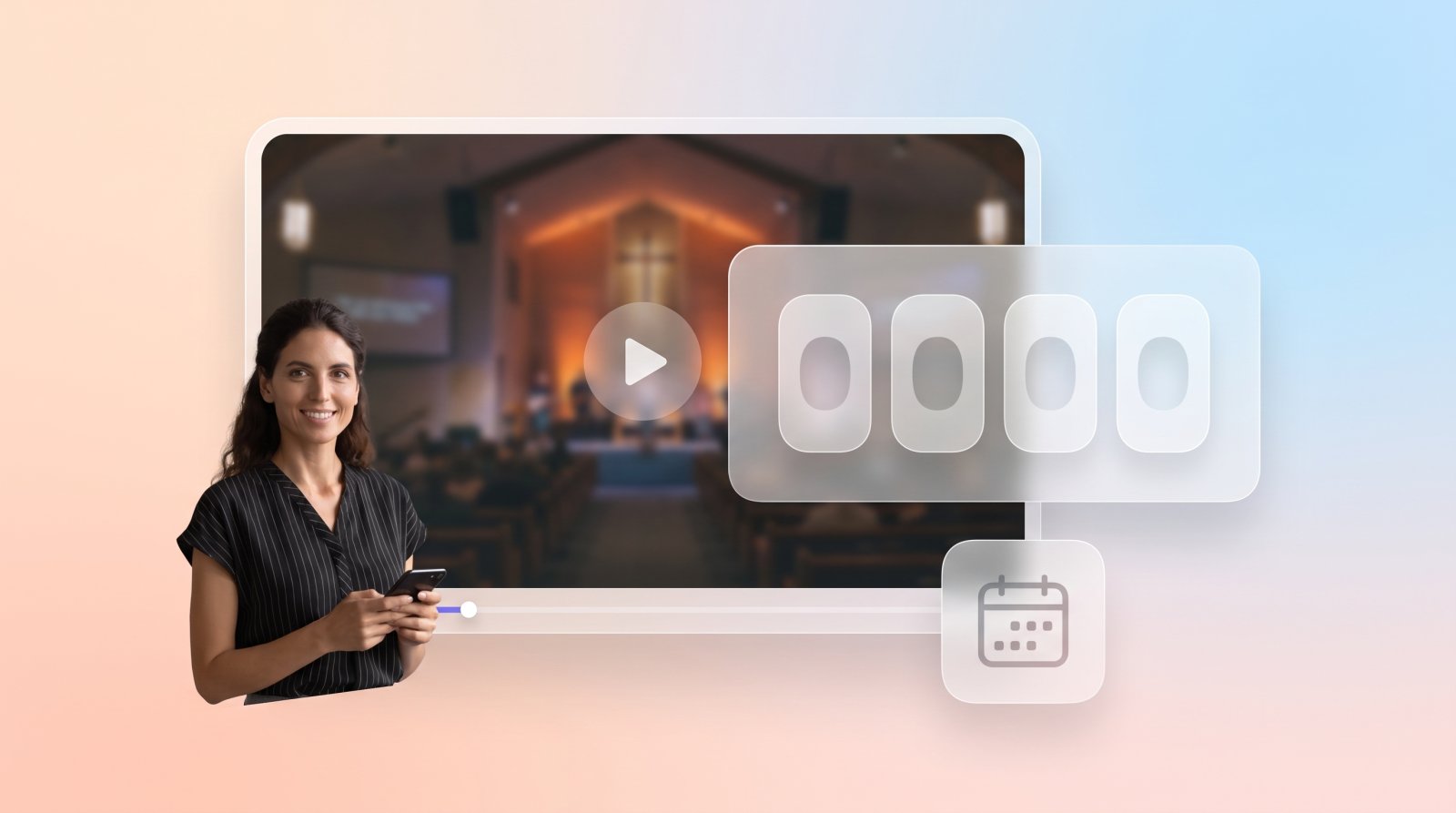
Open your church's live stream page on a Tuesday. What's there? For most churches it's either last Sunday's video or a static "Watch live Sundays at 10" graphic, which is the website equivalent of a locked door with a note taped to it. The visitor who found you on Google, the member who missed the service time change, the grandson checking whether Grandma's church streams: all of them get nothing to do and no idea when to come back.
A countdown fixes that in one glance. "Next live: Sunday 10:00 AM, 4 days 16 hours." The short answer for how to add one: either embed a standalone countdown widget and set your service time, or turn on the countdown that's built into your live stream widget so the same box that shows the video also counts down to it. The second kind is the one worth having, because it knows when you actually go live. Here's how both work, where to put the countdown, and what happens when you run late.
Why a countdown beats a dead player six days a week
A church live stream page is correct for about two hours a week and wrong for the other 166. A countdown makes the page useful at every hour: it tells a visitor exactly when the next service is, in their own time zone, and gives them a reason to come back. It also quietly confirms that the stream is a thing that happens, not an abandoned page.
The people this helps most are the ones you can't see. Nearly 30% of U.S. adults aren't on Facebook, according to the Pew Research Center, so they never get the "we're live!" post. They go to your website, because that's where a church is supposed to be. We've written before about reaching those website-first members. A countdown is the simplest thing you can do for them. It answers "when?" without making them hunt through a service-times page.
It helps the Sunday crowd too. A countdown reading "Starting soon" at 9:58 tells the early arrivals to stay put. A page that still shows last week's sermon at 9:58 tells them the link is broken, and they go looking for the Facebook post instead.
Option 1: a standalone countdown widget
A standalone countdown is a small embed you set to your service times; it counts down, hits zero, and resets to the next slot. Church-specific ones like Cowntdown run about $9 a month and work on WordPress, Squarespace, Wix, and most builders. The limit is that the timer knows your schedule but nothing about your stream.
That limit shows up at exactly the wrong moment. At 10:00 the timer resets to next Sunday and sits there beside a player that's still showing last week's video, or beside nothing, because someone still has to swap the embed code for this week's broadcast. The two boxes don't talk to each other. The countdown says "see you next week" while you're walking onto the stage.
Some builders have countdown blocks of their own (Wix has countdown apps in its market, and Church Online Platform offers an embeddable timer tied to its own schedule). They work fine for a sermon series launch or a Christmas Eve service. For a weekly live stream they share the same problem: the clock and the video are two unrelated things on the page, and the video is the one that goes stale.
If you've already embedded your stream the manual way and just want a clock next to it, a standalone timer is a reasonable Band-Aid. If you're setting the page up properly, skip ahead.
Option 2: a countdown built into the live widget
An auto-embed live widget already watches your channel and switches to the video when you go live, usually within about 10 seconds. Adding your weekly services to that widget means the same box counts down to the next service, shows the full weekly schedule on request, and then becomes the live video the moment you start. One embed code, pasted once.
This is the version we built into EmbedVidio's live widget, because "what's on the page when we're not live" was the most common question after "how do I stop swapping the embed code." The setup takes about five minutes:
- Open the widget's Schedule section in the editor and switch it on. Set your church's time zone once.
- Add your weekly events, up to 14 of them: a title, a weekday, and a time. "Sunday Worship, Sunday, 10:00 AM." "Wednesday Study, Wednesday, 7:00 PM." Mark each one "streamed in this widget" or not (more on that below).
- Pick where the countdown sits and save. The embed code on your site doesn't change; the widget starts counting down on its own.
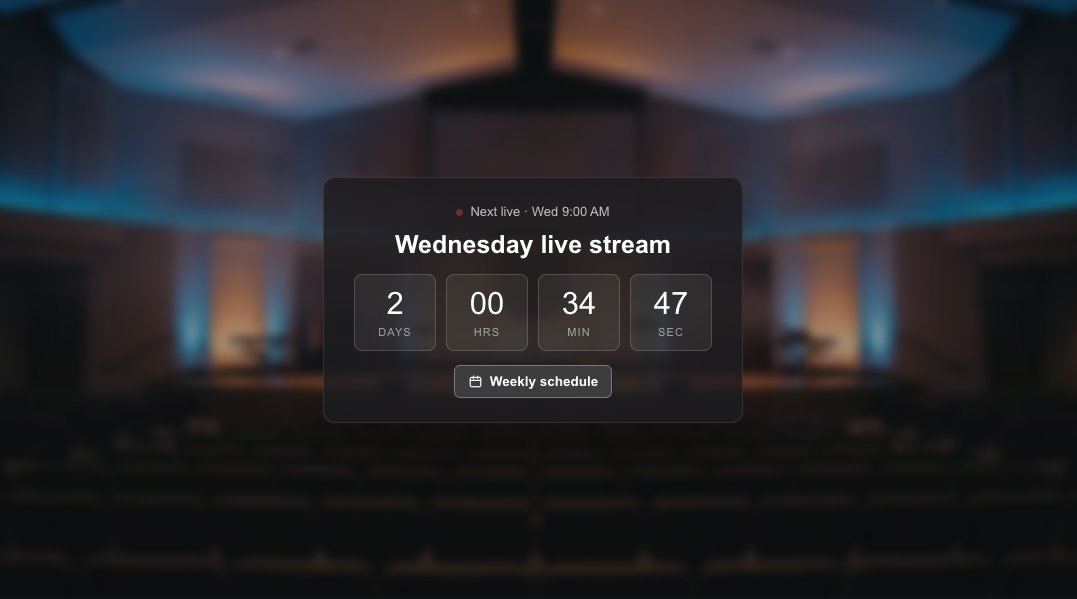
If you schedule broadcasts on YouTube, Facebook, or Twitch ahead of time, you may not need to type anything at all. The widget picks up scheduled streams on its own within 15 minutes, and a scheduled stream that lands on the same slot as a weekly event simply takes over that event's countdown. For YouTube, there's a bonus: from an hour before a scheduled stream, the widget can swap your placeholder for that stream's own YouTube player, so early arrivals sit in YouTube's waiting room and the video starts the second you do.
You can watch one run on our countdown demo page. It's a widget with a weekly schedule and nothing else, which is also proof that you don't need to schedule anything on YouTube to get a countdown. The widget itself is the same one from our church live stream embed page, starting at $9/month.
Where the countdown sits on the page
The countdown works in four placements: a small pill in the widget's header ("Live in 6h 47m"), a card in the center of your placeholder image, a slim strip along the image's bottom edge, or a bar under the player. Which one fits depends on whether your placeholder image is the hero of the page or the video is.
The header pill is the quiet option. It sits beside your church name with a "Weekly schedule" toggle next to it, and your placeholder image stays untouched. Pick it if the placeholder is a photo you're proud of.
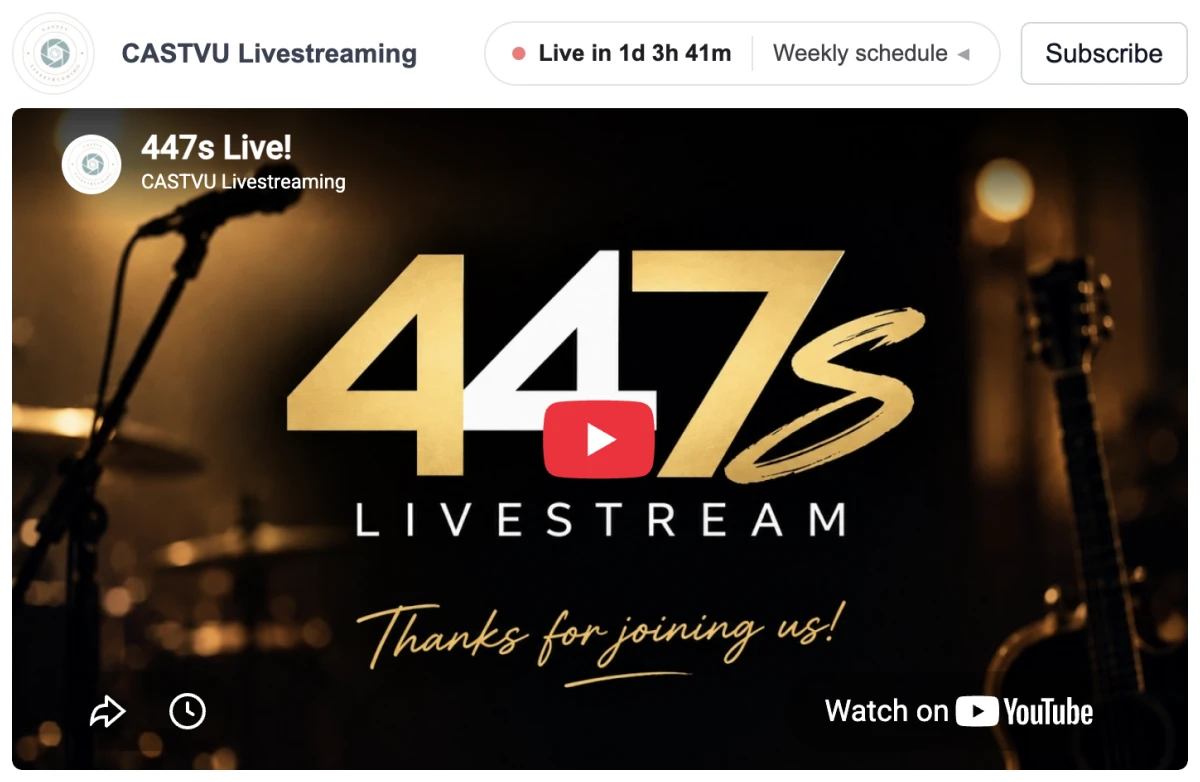
The center card is the loud option. The placeholder dims and a card with the next event's name and a days / hours / minutes / seconds clock sits in the middle. Pick it when the countdown is the point of the page, which for a "watch online" page it usually is. The bottom strip is the compromise: the image stays visible, the countdown runs along its lower edge.
The bar under the player is for layouts with no placeholder image to draw on, like the Live+ layouts that show your recent services beneath the player. It sits between the header and the videos. On phones, all four tighten up so the countdown still reads at a glance.
Time zones, midweek studies, and the events you don't stream
Set your church's time zone once and every visitor sees times converted to their own. Each weekly event also has a "streamed in this widget" switch. Only streamed events get a countdown; the rest still appear in the weekly schedule so people know what's on. That lets one widget list the whole week while counting down only to what's actually broadcast.
The time zone part sounds like a detail until you have a congregation spread across three states. The student at college two time zones over sees "Sunday 8:00 AM" on her clock, not yours, and shows up on time. Nobody has to write "all times Central" anywhere.
The "streamed" switch solves a quieter problem. Most churches have a midweek study, a youth night, or a prayer meeting that isn't broadcast. You want those on the schedule, because the schedule is also the easiest service-times list on your site. You don't want the widget counting down to a Wednesday night that never goes live and then sitting on "Starting soon" for an hour. Leave those events unstreamed and they show up in the list with no countdown, and the clock stays pointed at Sunday.
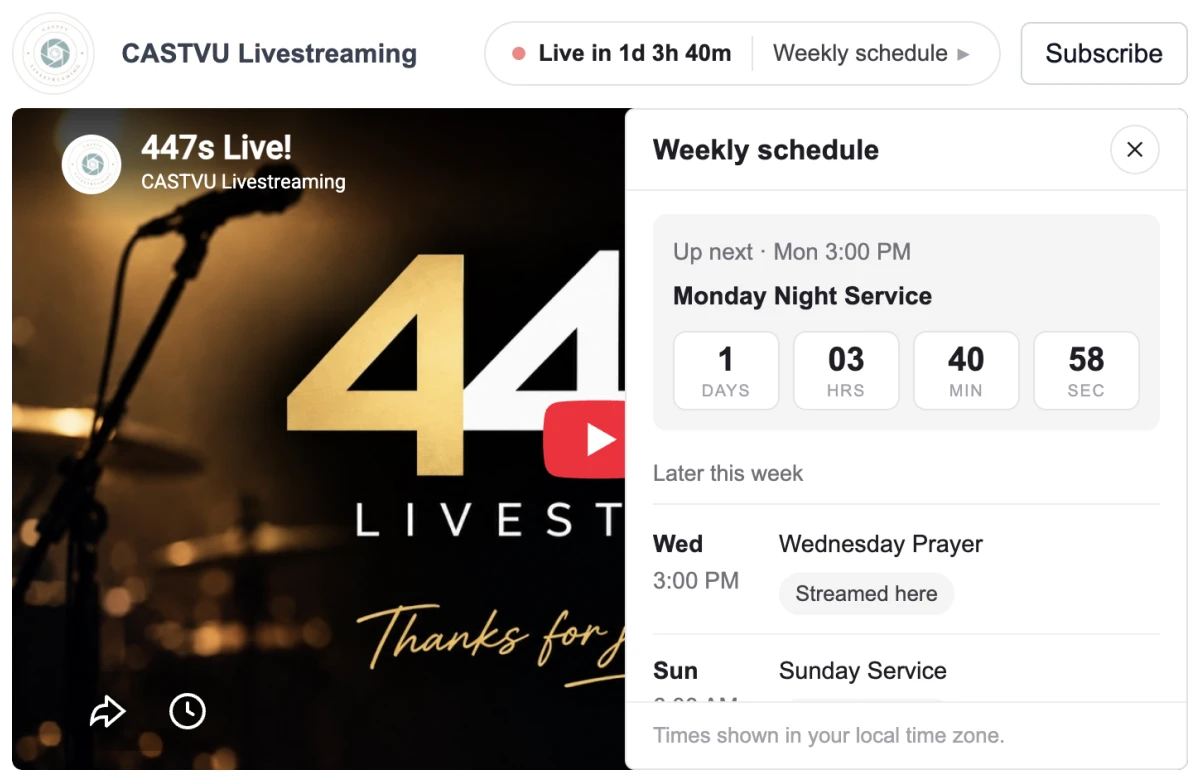
Visitors open that weekly schedule from any of the placements. It slides over the video with "Up next" at the top and the rest of the week below, with a "Streamed here" mark on the events they can watch on your site. You can switch the list off and keep just the countdown if you'd rather send people to a service-times page.
What happens when you run late
When a scheduled time passes and the stream hasn't started, the countdown switches to "Starting soon" and waits up to an hour. The moment the stream begins, the live video takes over. If an hour passes with no stream, the widget moves on to the next event. Under 10 minutes to go, the clock turns red so early arrivals know they're in the right place.
Every church runs late sometimes. The sound check goes long, the encoder needs a restart, the pastor is still praying with someone in the lobby. A countdown that flips to "next week" at 10:00:01 makes the website lie during the ten minutes the most people are staring at it. "Starting soon" tells the truth: the service is happening, hold on.
And when you do go live, the countdown doesn't need to be told. The widget detects the stream the same way it always has, in about 10 seconds, and the card, the pill, or the bar gets out of the way for the video. If you're curious how that detection works, and why it's the whole point, the complete guide to live streaming your church service walks through it.
Set it up this week
If your stream is already embedded with an auto-embed widget, this is a five-minute job: open the Schedule section, add your Sunday service, choose a placement, and you're done before the coffee's cold. If your stream isn't embedded yet, start with how to embed your church live stream on your website and add the schedule as the last step. If your church has no website at all, the hosted Live Page has the same countdown and schedule built in, on one permanent link.
Then open the page on a Tuesday and see what a visitor sees. If it says "Next live: Sunday 10:00 AM" and counts, you've given the other 166 hours a job.
Frequently Asked Questions
How do I add a countdown timer to my church website?
You have two options. A standalone countdown widget (a paid service or your website builder's countdown block) counts down to a time you set, then resets. A countdown built into your live stream widget does the same, but also knows your stream: it picks up streams you schedule on YouTube or Facebook, and switches to the live video the moment you start.
Does a church website countdown show the right time in every time zone?
A good one does. You set your church's time zone once, and each visitor sees the countdown and the weekly schedule converted to their own clock. This matters for college students, snowbirds, and family who moved away, who are often the people watching from furthest off.
What happens to the countdown if we start the service late?
With the countdown built into the live widget, it switches to "Starting soon" when the scheduled time passes and waits up to an hour for you. The moment the stream starts, the live video takes over. If you never go live, it moves on to the next event. A standalone timer just resets to next week.
Can the countdown pick up streams I schedule on YouTube or Facebook?
Yes, if the countdown is part of the live widget. Schedule a broadcast on YouTube, Facebook, or Twitch the way you already do, and the widget adds it within 15 minutes, with no extra typing. For YouTube streams, the widget can even show that stream's waiting room from an hour before so the video starts the moment you do.
Written by
EmbedVidio Team
EmbedVidio puts your live streams and videos from Facebook, YouTube, Twitch, and more on any website with a one-time embed code.
Related Articles
 Church Streaming
One Link for Your Church Live Stream (No Website Needed)
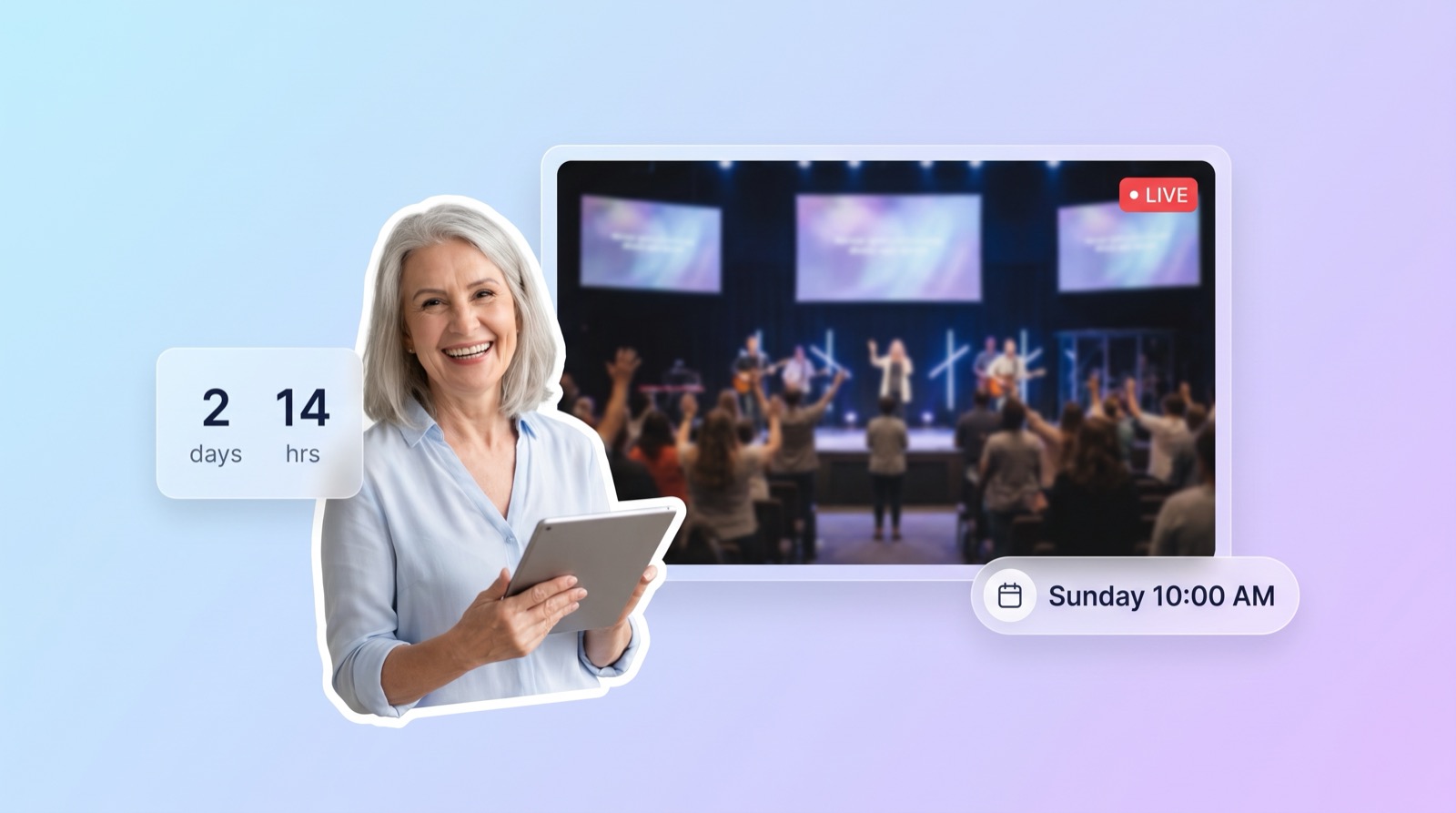
Stop sending a different watch link every week. Give your church one permanent live stream page that counts down, flips to live automatically, and works even if you have no website at all.
7 min read Church Streaming
How to Embed Your Church Live Stream on Your Website
Three ways to get your church live stream onto your own website: manual embed codes, church platform widgets, and a one-time embed that detects when you go live. What each one costs you every Sunday, where to paste it, and what to do when the stream does not show.
11 min read Church Streaming
How to Reach Church Members Who Aren't on Facebook
A big share of your congregation will never watch a Facebook-only stream. Here is how to make sure the members who aren't on Facebook can still watch your service, from your own website, no account required.
7 min readGive your placeholder something to say
Add your weekly services once and your live widget counts down to the next one, then flips to live on its own. Free 7-day trial, no credit card required.
Start Free Trial