How to Live Stream Church Services for Free
Your church can stream this Sunday for $0 with a phone and a free Facebook or YouTube account. The exact setup, the one thing that actually matters (upload speed), the first upgrades worth buying, and how to get the stream onto your website for the members who are not on Facebook.
Your church can start live streaming this Sunday without spending a dollar. A smartphone, a free Facebook Page or YouTube channel, and a decent internet connection are the whole list.
That's not a pitch. It's how hundreds of churches started in 2020, and a lot of them still stream that way in 2026 because it works. The phone in your pocket shoots better video than the camcorders churches bought a decade ago. The one thing that actually decides whether your stream is watchable is upload speed, and testing it takes two minutes.
Here's the plan: pick Facebook or YouTube based on where your congregation already is, mount the phone, test the upload speed, go live from the app, and spend nothing until you've watched a few recordings back and know what bothers you. Then fix audio first. And when you're ready, put the stream on your own website, because that's where the members who aren't on Facebook will look for it.
The $0 setup is three things you already own
A free church live stream needs a smartphone from about 2018 or newer, which shoots 1080p video, a free Facebook Page or YouTube channel, and an internet connection with at least 5 Mbps upload speed. Nothing else is required. Cameras, mixers, and streaming software are upgrades for later, not prerequisites.
Forget the guides that open with a $500 camera and a $100-a-month platform. Any iPhone or Android from the last several years shoots 1080p, which is broadcast quality for a sanctuary. Both platforms stream for free. The internet connection is the only variable, and you'll test it below.
One small thing: use the rear camera, not the selfie camera. It's sharper, and positioning the phone so nobody can see the screen keeps the volunteer from checking comments mid-sermon.
Facebook Live or YouTube Live: pick by where your people are
Choose Facebook Live if most of your congregation already follows your Page, because followers get a notification the moment you go live. Choose YouTube Live if you want anyone to watch with no account and a searchable sermon archive. Both are free, both save the recording, and many churches eventually stream to both with a free multistream tool.
| Facebook Live | YouTube Live | |
|---|---|---|
| Cost | Free | Free |
| Account needed to watch | Facebook account | None |
| Viewers notified when you go live | Page followers, automatically | Subscribers with notifications on |
| Streaming from a phone | Right away | Channel needs 50 subscribers |
| Recording saved | To your Page | To your channel |
| Findable by search later | Not really | Yes |
Facebook's advantage is the built-in audience: the people who follow your Page hear about the stream without you doing anything. Its weakness is the door. Nearly 30% of U.S. adults aren't on Facebook, per Pew Research, and the share rises with age, which describes a lot of the members watching from home.
YouTube's advantage is that anyone can watch, and the archive is searchable, so "Easter 2026 sermon" is findable next year. The catch for a brand-new channel is the mobile rule: YouTube requires 50 subscribers before you can go live from the phone app. You can stream from a computer immediately, and a small church hits 50 in a few weeks once it asks.
Streaming to both is common and free with a multistream tool, but it adds a moving part. Start on one, get three Sundays under your belt, then expand. The best church streaming software post compares the multistream options.
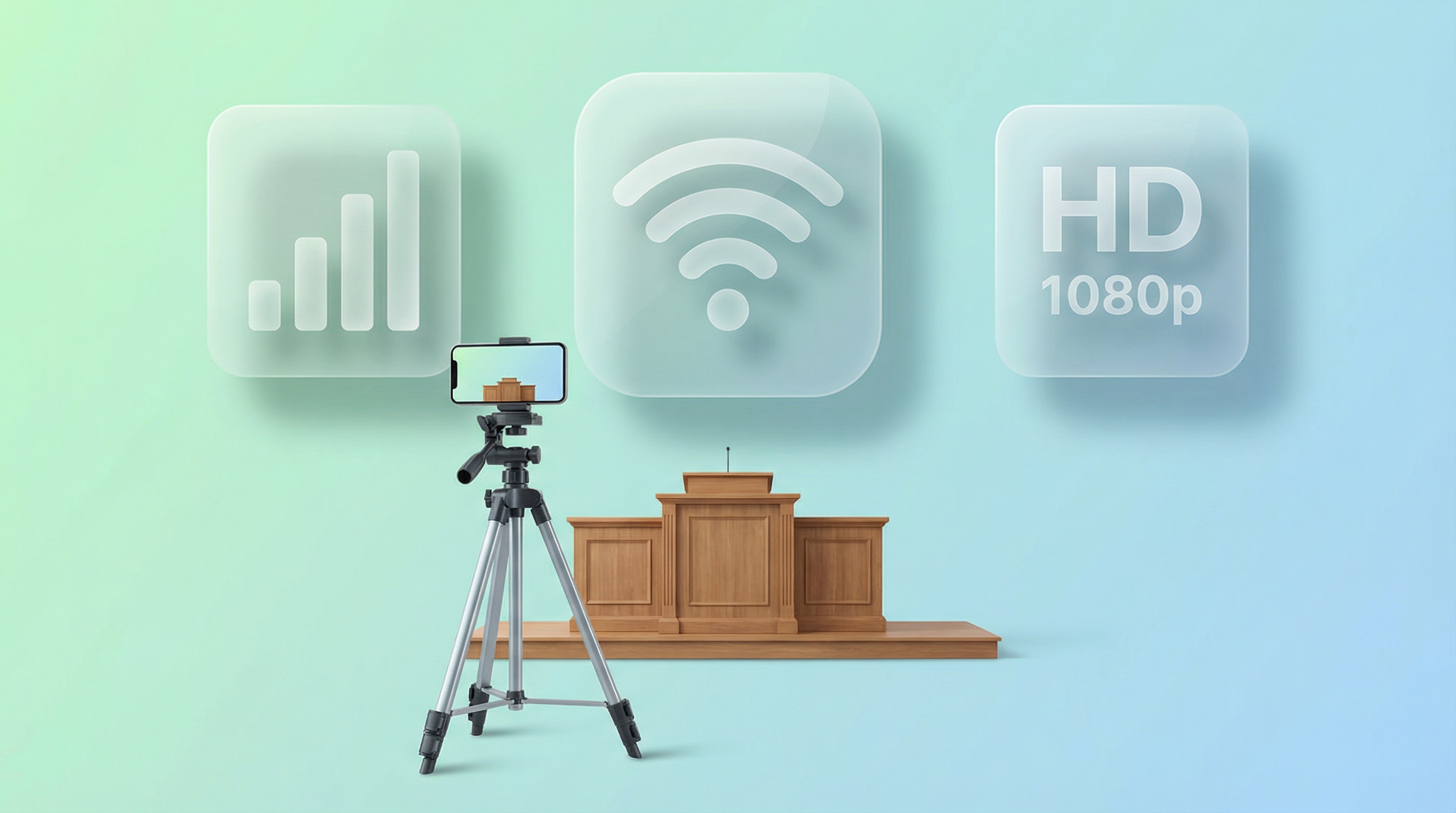
Test your upload speed before you touch anything else
Upload speed decides whether your stream is watchable. You need 5 Mbps upload for 720p and 10 Mbps for 1080p. Test at fast.com from the exact spot you'll stream from, at your normal service time, and read the upload number, not the download. If it's low, a $15 ethernet adapter into the router is the fix.
Go to fast.com on the phone you'll stream from, tap "Show more info," and look at upload. Download speed is irrelevant here; streaming pushes video out. Test on a Sunday morning if you can, because a building that shares internet with a school or an office has different Sunday and Tuesday speeds.
If the number is under 5 Mbps, the fixes in order of impact: plug the phone into the router with a USB-C or Lightning ethernet adapter (Wi-Fi drops packets, wire doesn't); ask the congregation to stay off the church Wi-Fi during the service; move the router closer to the streaming spot. The adapter is the single best $15 in this whole post.
Set up the phone and go live
Mount the phone in landscape at the speaker's eye level, 10 to 15 feet from the pulpit, lock focus on the speaker's face, plug it in, and go live from the Facebook or YouTube app on your church's Page or channel. The first stream takes about fifteen minutes of setup. Every one after that takes five.
Mount it. A $15 phone tripod is ideal. No tripod yet? Lean the phone against a hymnal; stability matters more than the mount. Landscape, always: vertical video looks wrong on a website and a TV. Eye level, 10 to 15 feet back, so the shot feels like sitting in the room rather than standing on the stage. Tap and hold on the speaker's face to lock focus and exposure so the camera doesn't hunt when the lights change. And plug it in, because an hour of streaming empties a battery.
Facebook. Open the Facebook app, go to your church's Page (not a personal profile), tap Live, add a plain title like "Sunday Worship," and start. Your Page followers are notified. When the service ends, tap Finish and the recording is saved to the Page.
YouTube. Open the YouTube app, tap the plus button, choose Go live, add a title, set privacy to Public, and start. When you're done, end the stream and the recording is on your channel.
One habit worth building from the first week: type a real title before you go live. It becomes the name of the video on the platform, on your website, and in search. Without it, every service is just a date.
The first upgrades that matter, all under $50
After two or three streams, watch the recordings and fix what bothers you most. For almost every church that's audio: a $15 to $25 clip-on microphone, or a $10 to $20 cable from the soundboard to the phone, improves the stream more than any camera. Then a real tripod. Lighting is usually free, by moving the speaker or closing a blind.
The phone's built-in microphone hears everything: the speaker, the air conditioning, the baby in row three, the echo off the walls. A lavalier mic clipped to the speaker's collar fixes the sermon. If the church has a soundboard, a cable from its aux or tape output into the phone captures the whole mix, worship team included, and that's the best audio upgrade at any price.
Lighting problems are usually a window behind the speaker turning them into a silhouette. Close that blind, or turn the speaker to face the window so it lights them instead. A $20 to $30 ring light helps in a dark sanctuary, but rearranging what you have is often enough.
| Upgrade | Cost | What it fixes |
|---|---|---|
| Clip-on lavalier mic | $15 to $25 | Muffled, echoey sermon audio |
| Soundboard-to-phone cable | $10 to $20 | Everything audio, including the band |
| Phone tripod | $12 to $20 | Shaky or crooked shot |
| Ethernet adapter | About $15 | Buffering and dropped streams |
| Ring light | $20 to $30 | Dark sanctuary, only if the free fixes fail |
Don't buy all of it at once. Stream for a few weeks with the phone alone, then spend on the one thing the recordings tell you to. When you outgrow this list, the church live streaming equipment guide covers the next tiers with real products and prices.
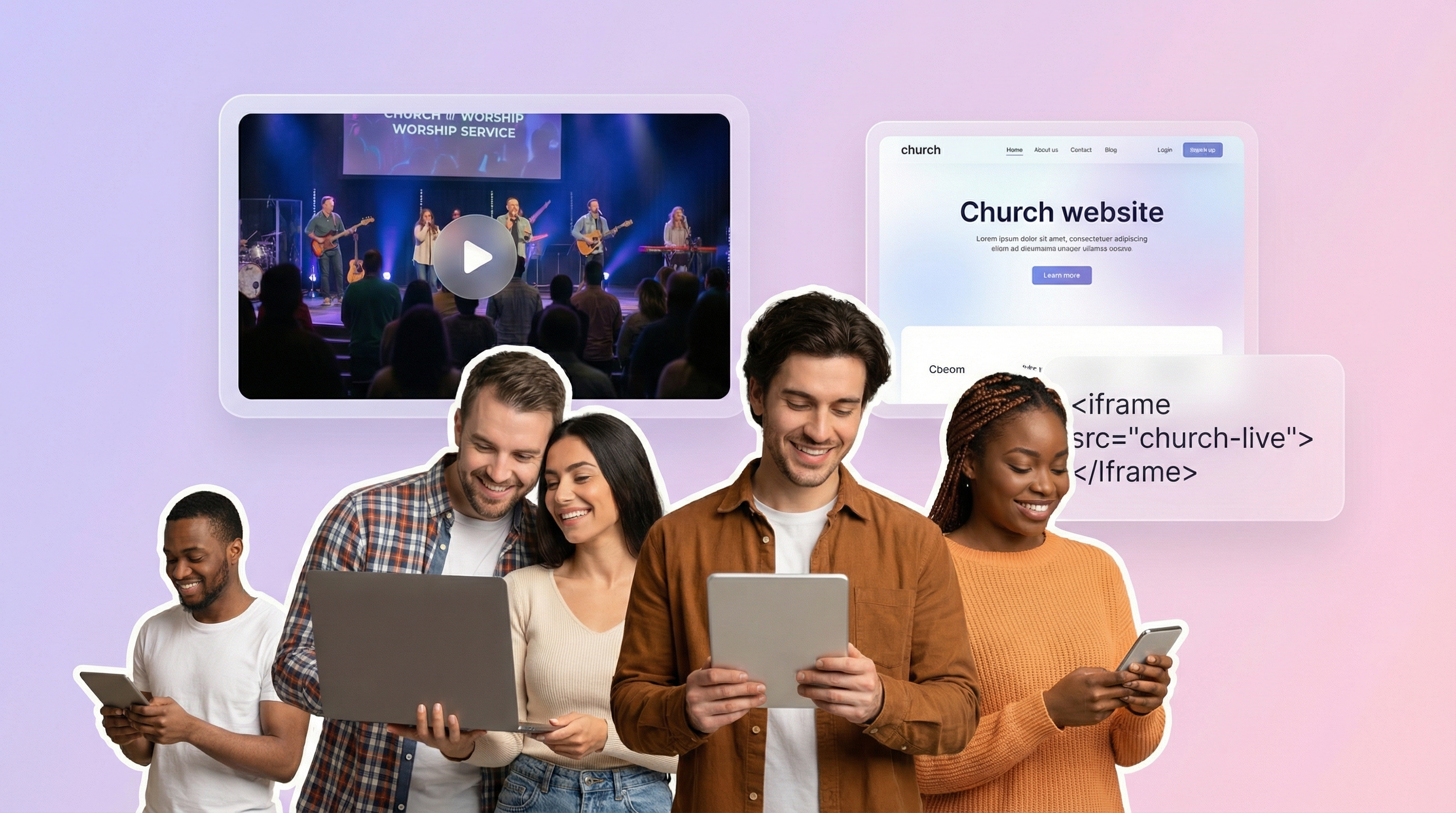
The step other guides skip: your website
Streaming to Facebook or YouTube reaches the people on those platforms. Your website reaches everyone, including the roughly 30% of adults who aren't on Facebook. The snag is that both platforms create a new video URL for every broadcast, so a pasted embed code goes stale weekly. The fix is either a weekly paste or a tool that detects the stream and swaps it in.
Your website is the one place every member already knows how to find, no account needed. That's where the shut-in's granddaughter set up "the church website" on the iPad. If the stream isn't there, they don't see it. We wrote a whole post on reaching church members who aren't on Facebook, and this is the short version.
The manual route is free: after you go live, copy the video's embed code and paste it into a code block on the site. It works on any builder. Someone just has to do it before every service, and if they're late or sick the site shows last week's.
This is the exact problem we built EmbedVidio to solve: paste one embed code into your site once, and it detects when your Page or channel goes live and plays the stream automatically, then shows your recent services when you're offline. It's the only paid piece in this whole guide, from $9/month or $7/month billed yearly, with a 7-day free trial. You could wire up something similar with the platforms' APIs. It just costs a lot more Saturday than pasting one line.
Builder-specific paste steps: WordPress, Squarespace, Wix, and any website. The full comparison of every method is in how to embed your church live stream on your website.
Common first-month problems and the fix for each
Buffering is upload speed; test again at service time and go wired. Echo is the room; a lavalier or soundboard feed captures the speaker instead of the walls. Dark video is the camera needing more light than your eyes do. And "nobody's watching" is normal for four to six weeks, until the congregation builds the habit.
It keeps buffering. Almost always upload bandwidth. Re-test at the actual service time; if it's under 5 Mbps, wire the phone to the router and clear other devices off the Wi-Fi.
The audio echoes. Tile, bare walls, and high ceilings bounce sound. A clip-on mic or a soundboard cable captures the speaker directly. Until then, move the phone closer.
The video looks dark. Cameras need more light than eyes. Turn up the house lights even if it feels bright in the room, or move the speaker to the best-lit spot.
Nobody is watching. Expected at first. Put the link in the bulletin, the weekly email, and above the player on your website, every week, in the same place. It takes a month or so for people to build a routine.
We want to stream to both platforms. OBS Studio (free, more control, an afternoon to learn) or Restream (free for one destination pair, easier) sends one broadcast to Facebook and YouTube at once.
Music licensing, briefly
If the stream includes copyrighted worship songs, a streaming license is the right thing to have. CCLI's streaming license covers most worship music and is priced by church size; ASCAP and BMI licenses cover a broader catalog with more paperwork. Facebook and YouTube also run automated copyright detection that can mute parts of a stream, which is a practical reason to sort this out early, separate from the legal one.
Your first Sunday checklist
Thirty minutes out: phone charged or plugged in, upload speed tested (5 Mbps or better), tripod set in landscape, focus locked on the pulpit, external mic connected if you have one. Five minutes out: open the app, go to the church Page or channel, tap Go Live with a real title, and check that the picture and sound are right. During the service: leave the phone alone. After: end the stream, confirm the recording saved, and share the link in the church email.
Start this Sunday with the phone. After a few weeks you'll know exactly which upgrade, if any, is worth the money. For everything past the free tier, from platform choice to gear to the website, start with the complete guide to live streaming your church service to your website.
Frequently Asked Questions
Can we really live stream church services for free?
Yes. Facebook Live and YouTube Live cost nothing. You need a smartphone from about 2018 or newer, a free Page or channel, and an internet connection with at least 5 Mbps upload speed. Plenty of churches have streamed every Sunday since 2020 with exactly that.
What internet speed does a church need to live stream?
At least 5 Mbps upload for 720p and 10 Mbps for 1080p. Upload, not download, is the number that matters. Test at fast.com from the spot you stream from, at your usual service time, and plug into the router with an ethernet adapter if the number is low.
Should we stream on Facebook Live or YouTube Live?
Facebook if most of your congregation already follows your Page, because they get notified when you go live. YouTube if you want anyone to watch without an account and a searchable sermon archive. Many churches end up on both with a free multistream tool.
How do we get the free stream onto our church website?
Paste the video embed code into a code block on your site. The catch is that the code changes every broadcast, so someone updates it weekly. A live-detecting embed tool uses one permanent code and swaps the stream in for you; that is the only paid piece in this whole setup.
What is the first equipment upgrade worth buying?
Audio. A $15 to $25 clip-on microphone, or a cable from your soundboard to the phone, improves the stream more than any camera. Viewers will forgive soft video. They leave when the audio is echoey or muffled.
Written by
EmbedVidio Team
EmbedVidio puts your live streams and videos from Facebook, YouTube, Twitch, and more on any website with a one-time embed code.
Related Articles
 Church Streaming
Church Live Streaming Equipment Guide: What to Buy at Every Budget
Church live streaming equipment at three real budgets, $0 to $100, $200 to $600, and $1,000 to $2,500, with specific products and prices. Plus the upgrade order that matters more than the total: audio first, internet second, camera third.
10 min read Church Streaming
Best Church Live Streaming Software in 2026
A no-hype guide to the best church streaming software in 2026. Covers free platforms, full streaming solutions, multistreaming tools, and embed tools with real pricing and honest recommendations.
11 min read Church Streaming
How to Embed Your Church Live Stream on Your Website
Three ways to get your church live stream onto your own website: manual embed codes, church platform widgets, and a one-time embed that detects when you go live. What each one costs you every Sunday, where to paste it, and what to do when the stream does not show.
11 min readPut Your Free Stream on Your Church Website
Already streaming on Facebook or YouTube? EmbedVidio displays your live stream on your church website automatically. One-time setup, works every Sunday. Start your free 7-day trial.
Start Free Trial