October 5, 2026 / No. 1 / by Shawn North
Your widget now knows when you're going live
Until this week, a live widget had two states: live, and a placeholder. Most of the week it was the placeholder, and a visitor who landed on it had no idea when to come back.
Now the widget carries your schedule. Add your weekly services in the editor, or just schedule the stream on YouTube, Facebook or Twitch the way you already do, and the widget counts down to it. When the stream starts, all of it gets out of the way and the live video takes over, the same as before.
Where the countdown sits
You pick one of four places in the editor's Schedule section:
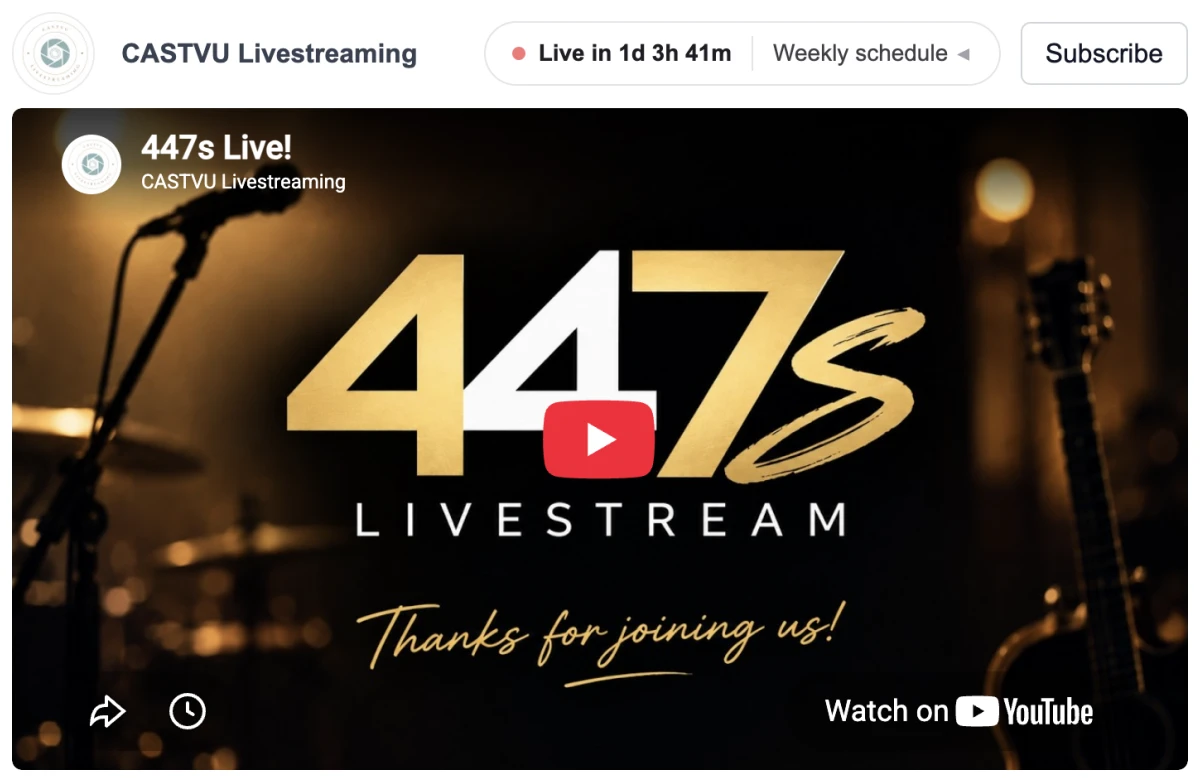
- In the header. A small white pill next to your channel name reading "Live in 6h 47m", with a "Weekly schedule" toggle beside it. This is the default.
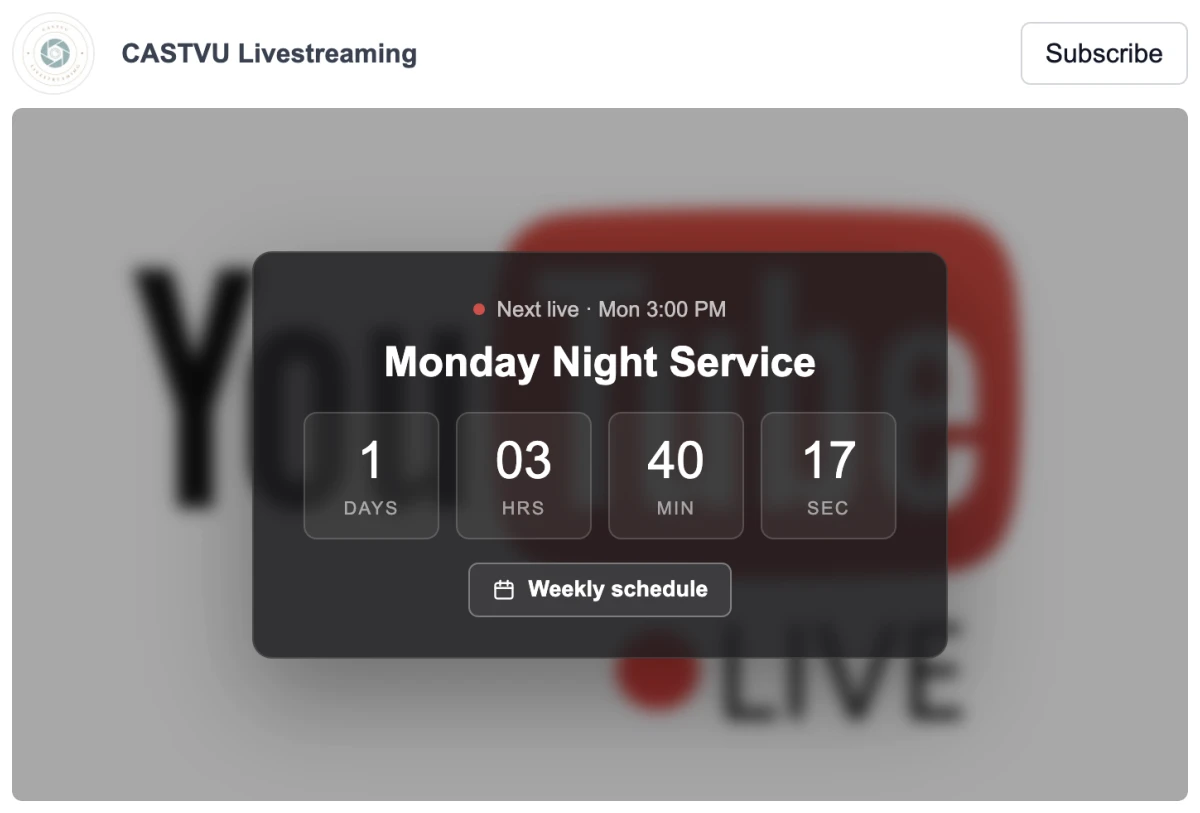
- Center of the image. Your placeholder image dims and a card sits in the middle with the next event's title and a days / hours / minutes / seconds countdown.
- Bottom of the image. A slim see-through strip along the bottom edge with the same countdown.
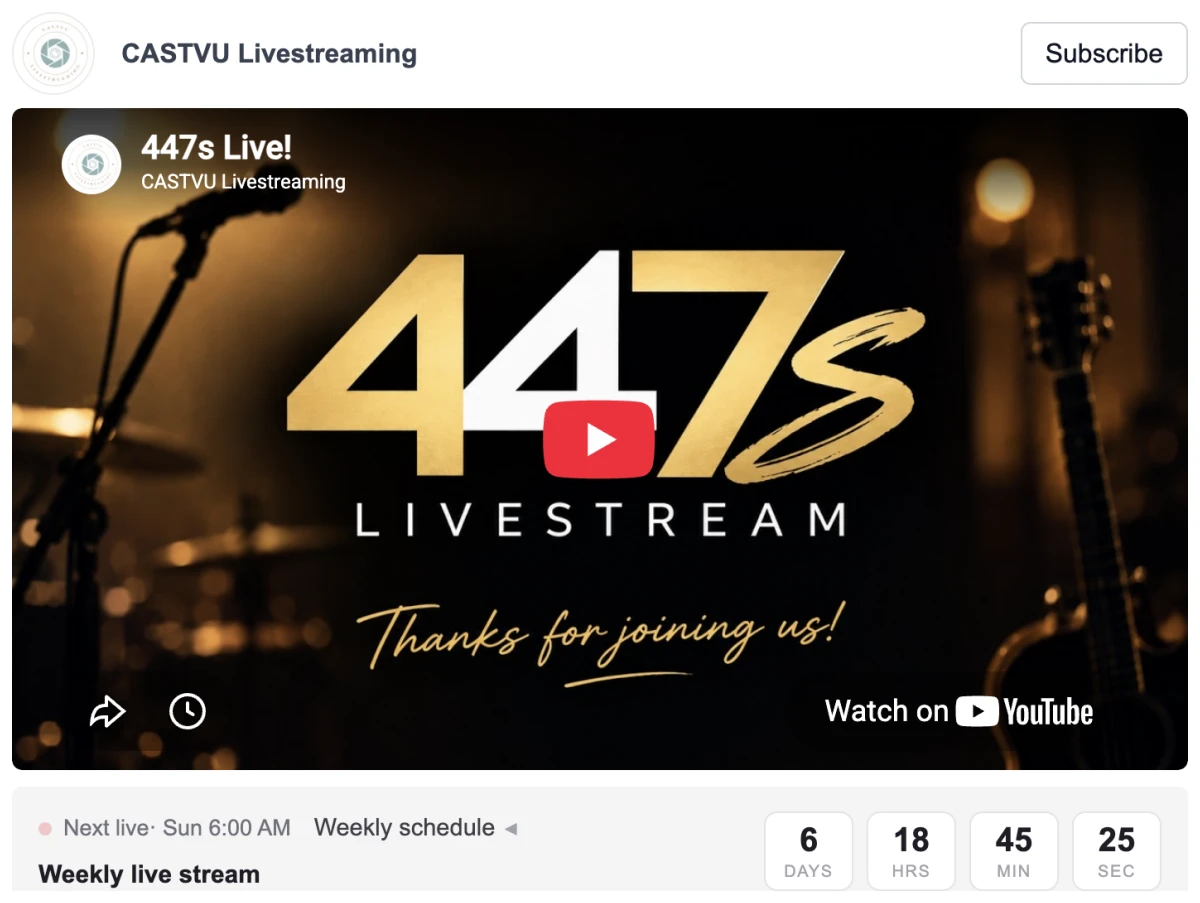
- Bar below the player. A light grey bar under the widget. On Live+ layouts it sits between the header and your videos.
Live+ layouts and widgets with "show last video" turned on offer the header and bar styles only, since there's no placeholder image to draw on. If you pick the header style with the header switched off, it shows as a bar until you turn the header on.
The countdown ticks every second. Under 10 minutes the minutes and seconds turn red. Once the start time passes it reads "Starting soon" and waits up to an hour for you before moving on to the next event. On phones the strip tightens up and the card dissolves into the dimmed image so the countdown still reads at a glance.
Your weekly events
Each event has a title, a weekday and a time, up to 14 of them. Set your time zone once; viewers always see the times converted to their own, which matters more than you'd think for a congregation spread across a few states.
Each event also has a "streamed in this widget" switch. Only streamed events get the countdown. The others, a midweek study that isn't broadcast, say, still show in the weekly schedule so people know what's on.
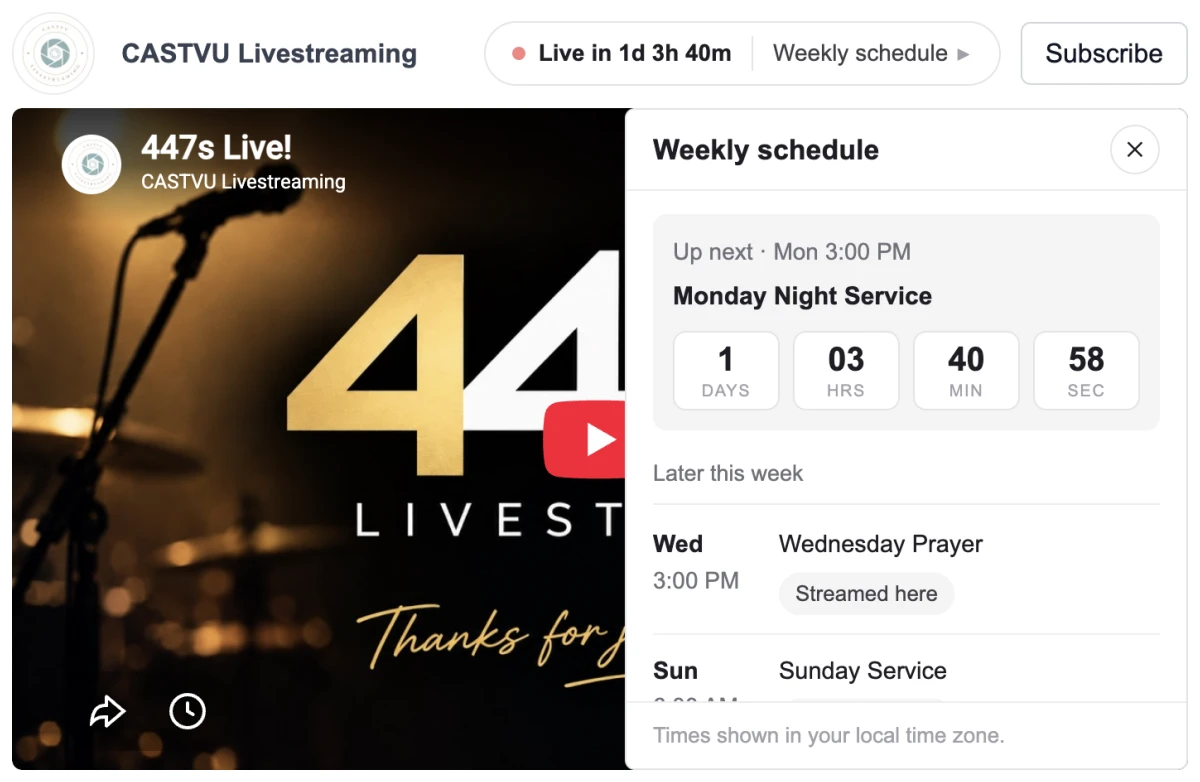
Viewers open that weekly schedule from any of the four placements. It slides in over the video with "Up next" at the top, the rest of the week below it, and a "Streamed here" mark on the events they can watch on your site. On phones it comes up from the bottom of the screen instead. You can switch the list off and keep just the countdown.
Streams you schedule on the platform
If you schedule a broadcast on YouTube, Facebook or Twitch, the widget picks it up on its own within 15 minutes, and straight away when you first switch the schedule on. A scheduled stream that lands on the same slot as a weekly event simply takes over that event's countdown.
Facebook took some digging. Facebook won't let an app list a Page's scheduled broadcasts without a review process, but it does send us a notification the moment you schedule one, and that is enough. Schedule a live in Live Producer and it's on your widget, and on your Live Page, within a second. Delete it and it's gone within 15 minutes.
YouTube has one extra trick. From an hour before a scheduled stream, the widget swaps your placeholder for that stream's own YouTube player, so viewers who arrive early sit in YouTube's waiting room and the video starts the moment you do. Facebook and Twitch don't offer a waiting room, so there the countdown runs right up to the start.
Nothing changed on your site today
Existing widgets have the schedule turned off, so no one's site looks different this morning. Turn it on in the editor's Schedule section when you want it; it stays hidden until you've added at least one event or scheduled a stream. New live widgets have it on from the start.